How to Use Feature Flags in GitHub Actions CI/CD Workflows

GitHub Actions is a great way to automate builds, tests, deployments, and other CI/CD tasks. But not every job needs to run on every push.
Sometimes you may want to skip a long-running test suite, pause a deployment, avoid unnecessary build minutes, or only deploy when a feature, release, or content update is ready. GitHub Actions already supports conditional jobs with if expressions, but those conditions usually live in your workflow file or depend on repository settings.
That works well for static rules. But when you want to control a workflow dynamically without editing YAML or manually changing GitHub environment variables, feature flags can give a cleaner option.
In this guide, we'll use ConfigCat feature flags in GitHub Actions to decide if the build and deploy jobs should run.

What Are Feature Flags?
Feature flags are software tools that make it easy to toggle features on/off in your apps or software services without re-deployments. For example, imagine you launch an in-app marketing campaign behind a feature flag. If something goes wrong, you can turn the flag off and hide the campaign while your team fixes the issue. No emergency deployment needed.
In a CI/CD workflow, feature flags can work in a similar way. Instead of controlling only user-facing features in your app, you can also use them to control parts of your development process.
For example, you can use a feature flag to:
- run or skip deployment jobs
- control if preview environments are created
- pause non-critical workflows
- enable release-related jobs only when a feature is ready
- skip expensive or long-running jobs when they are not needed
This is especially useful when you want a simple switch outside your workflow file.
Why Use Feature Flags in GitHub Actions?
GitHub Actions gives you several ways to control when jobs run. You can use branch filters, event triggers, workflow inputs, environment variables, and if conditions.
These are all useful, but they are not always ideal when the condition needs to change often.
For example, let's say your workflow builds and deploys a documentation site. While you are still writing a blog post, you may want to push small updates frequently without triggering a full deployment every time. You could update a GitHub environment variable manually, but that means going into repository settings, finding the right variable, editing the value, and hoping nobody makes a typo.
A feature flag gives you a more convenient control point. You can flip the flag from a dashboard, and your GitHub Actions workflow can use that flag value to decide what happens next. The real difference appears when using feature flag providers like ConfigCat, which provide an intuitive, robust platform for toggling jobs and remotely configuring your workflows.
Here's a quick rundown of some ConfigCat features:
- Simple user interface with switches for toggling flags on and off. Also supports text, number, and JSON values in addition to booleans.
- User targeting and segmentation for releasing features to specific users and user groups.
- Predefined variations and flag change reviews serve as guardrails when toggling feature flags or changing their values.
- Tagging and filtering options for organizing feature flags.
- Zombie flag alerts and Code references for identifying and locating feature flags for removal and auditing.
- Integrations with third-party platforms: analytics, project management, DevOps, IDEs, etc.
Building on these features, let's explore how ConfigCat's GitHub Actions integration can help solve our workflow challenge.
How to Conditionally Run Jobs in GitHub Actions Using Feature Flags
To demonstrate, I've built a simple blog using Astro that is set up to be hosted on GitHub Pages. The project has a GitHub Actions workflow with two jobs:
-
build: Builds the Astro project for GitHub Pages.
-
deploy: Uploads the build artifacts to GitHub Pages.
The deploy job depends on the build job, meaning it runs only after the build job has completed and the build artifacts are available.
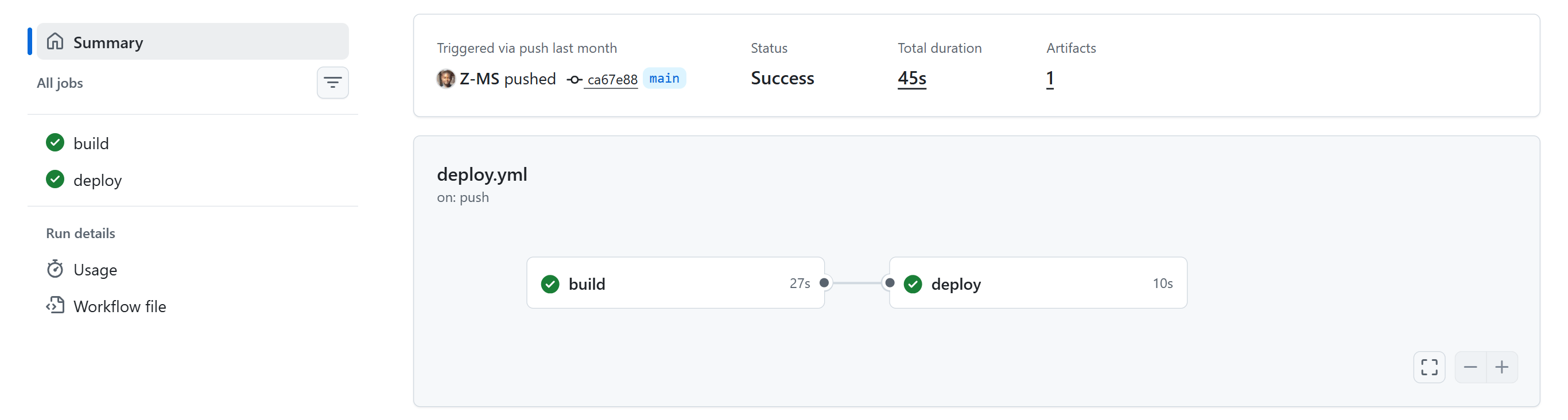
When writing a blog post, I prefer to commit and push changes frequently, but I only want to build and deploy once the post is complete. To support this workflow, we'll use a ConfigCat feature flag to control the build and deploy jobs.
Step 1: Creating a Feature Flag in ConfigCat
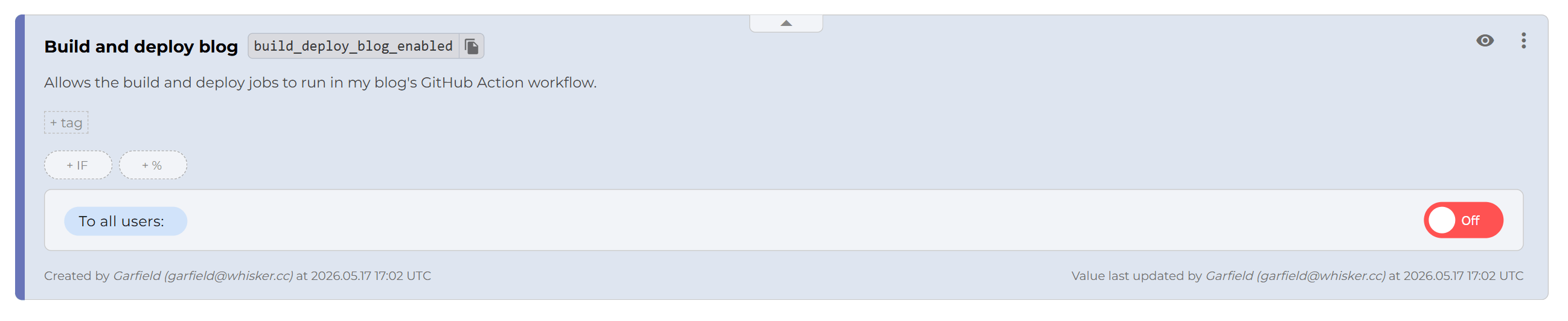
- In your ConfigCat dashboard, create a feature flag with the following details:
- Name: Build and deploy blog
- Key:
build_deploy_enabled - Hint: Allows the build and deploy jobs to run in my blog's GitHub Actions workflow.
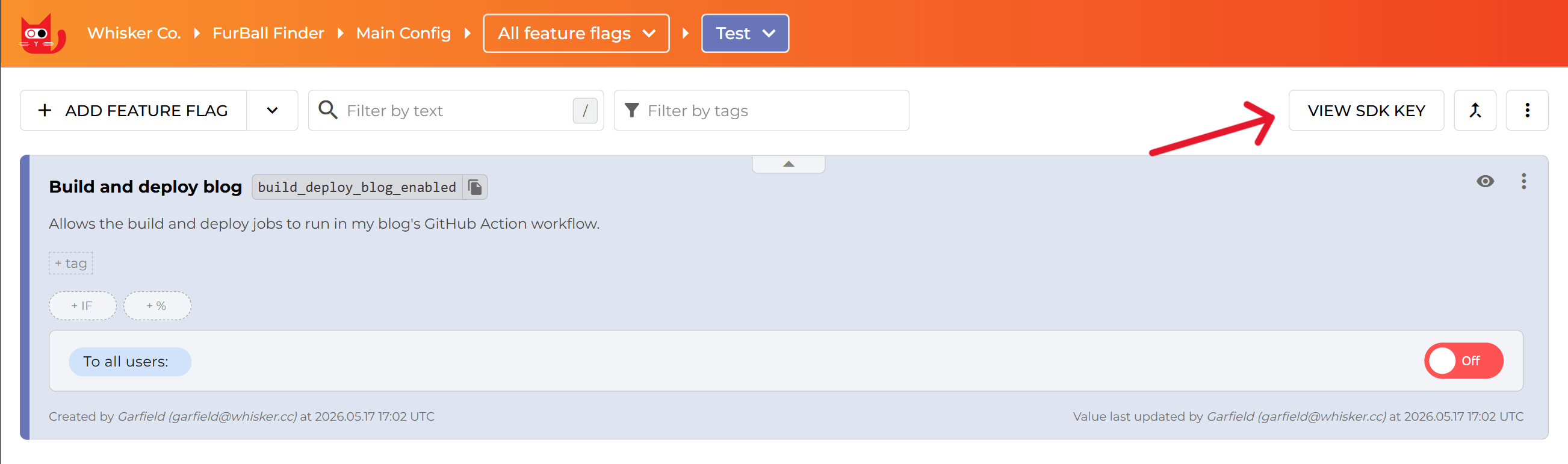
- Click VIEW SDK KEY in the top right corner of the dashboard, and copy your SDK Key.
Next, we'll generate API credentials so the GitHub Action can access ConfigCat and evaluate the feature flag.
Step 2: Create Your Public ConfigCat API Credentials
- Click the avatar icon in the top-left corner, then click My API Credentials in the dropdown that appears.
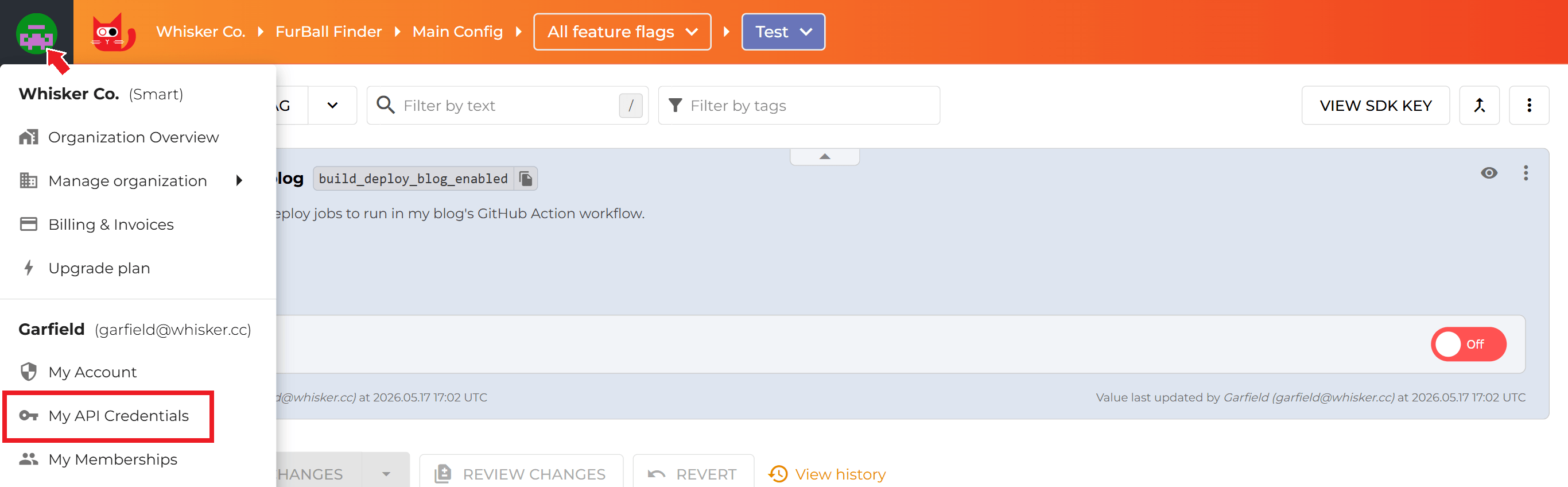
- Click ADD CREDENTIAL, give the credential a name, then click CREATE. A username and password will be generated.
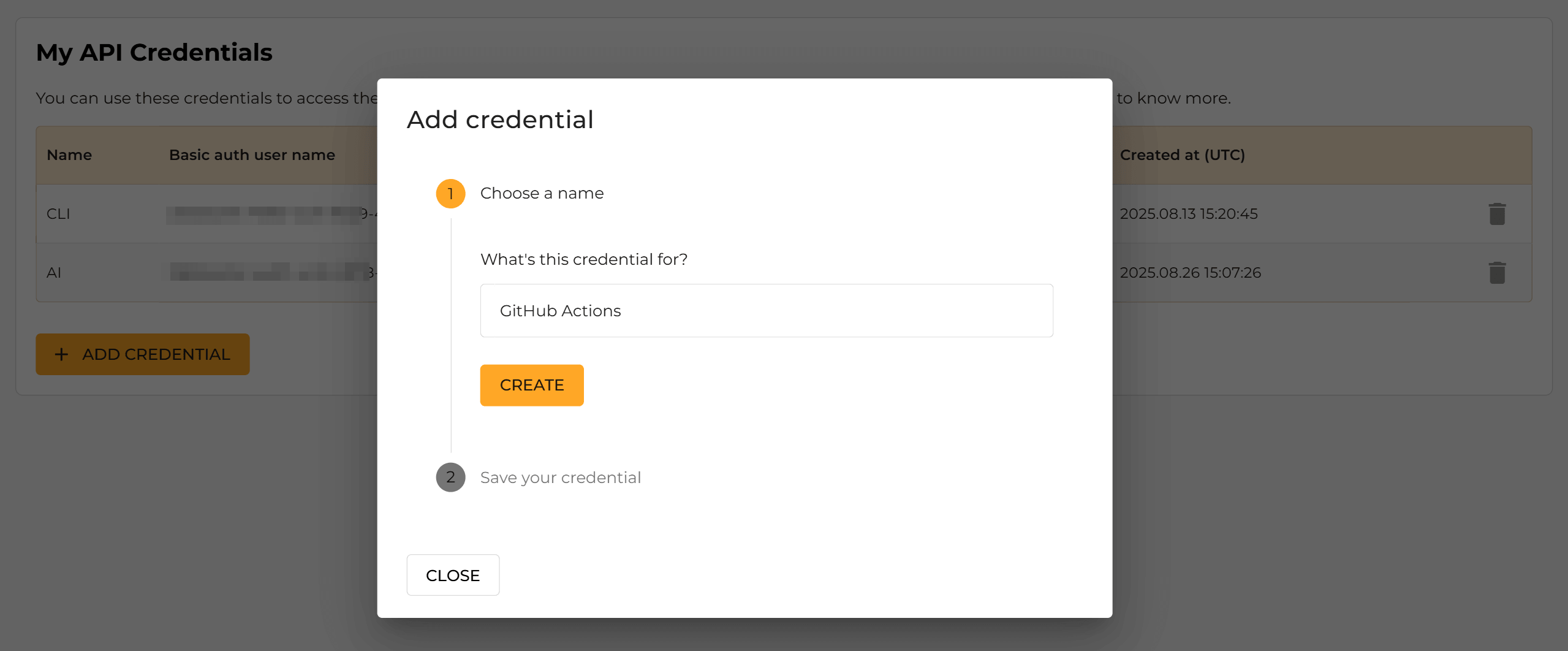
- Copy your credentials and store them somewhere safe.
Step 3: Add Your ConfigCat Credentials to GitHub
GitHub automatically created an environment for deploying to GitHub Pages, so we'll add the ConfigCat SDK key and API credentials to that environment's secrets.
In GitHub:
-
Open the repository's settings.
-
Click Environments on the left sidebar, then click on the environment's name (github-pages in this case).
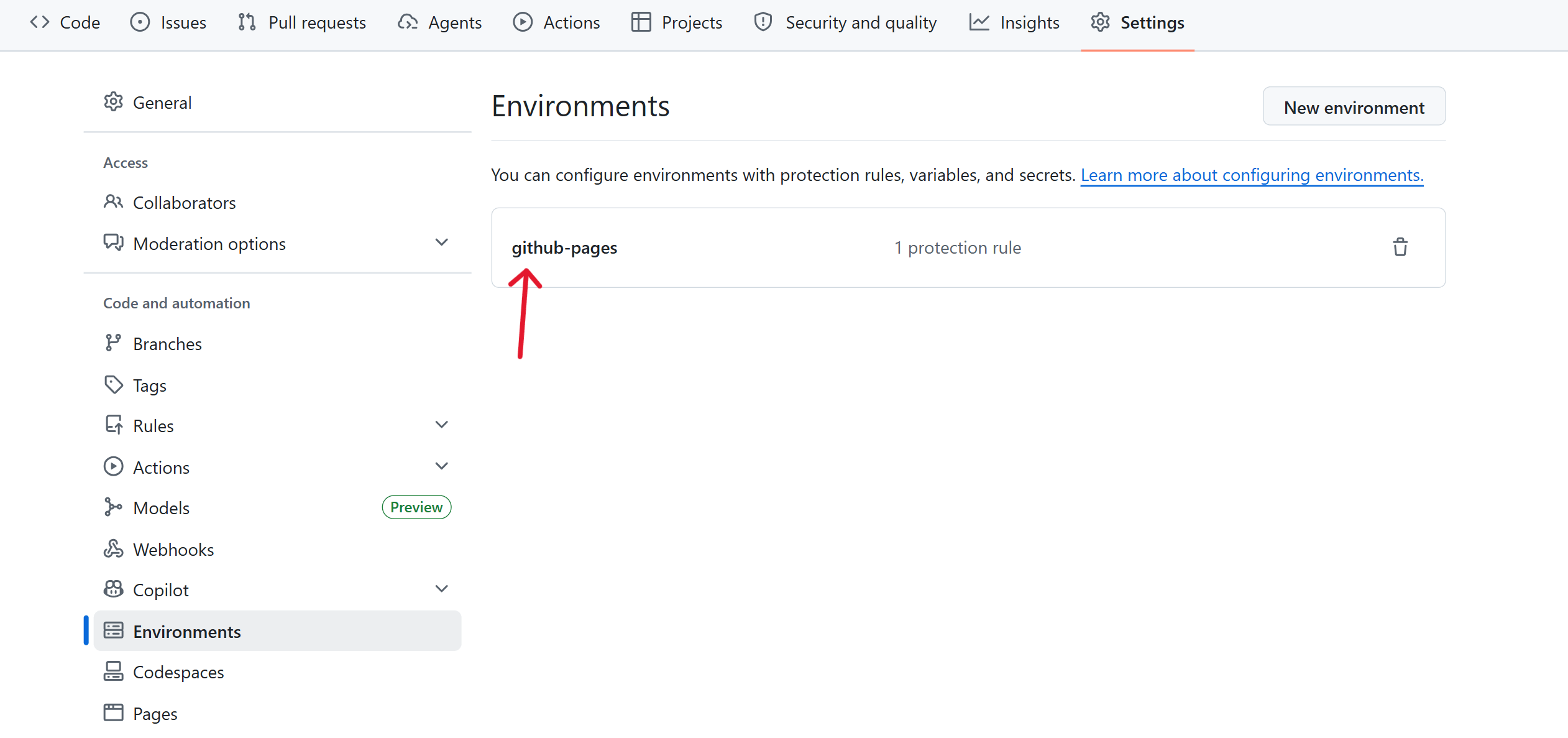
- Scroll down to Environment secrets and add the following credentials.
CONFIGCAT_API_PASSCONFIGCAT_API_USERCONFIGCAT_SDK_KEY
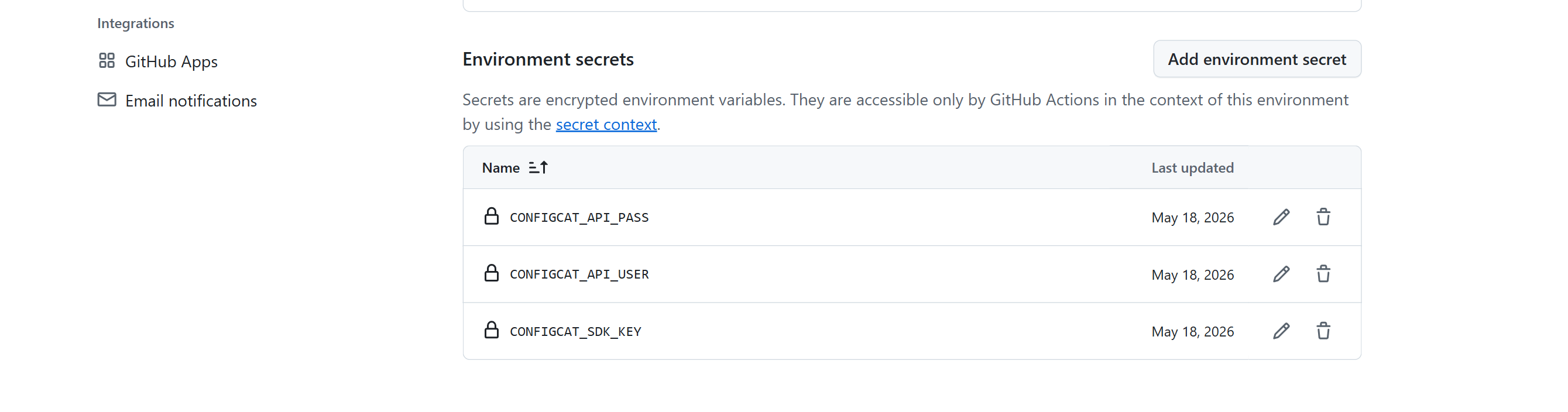
Next, we'll add the ConfigCat Action to the workflow and set the jobs to run based on the feature flag's value.
Step 4: Add ConfigCat to the GitHub Actions Workflow
- Open
.github/workflows/deploy.ymlin your favorite code editor. - Copy and paste the following code just before the build job.
  build-deploy-check:
    runs-on: ubuntu-latest
    environment:
      name: github-pages
    env:
      CONFIGCAT_API_USER: ${{ secrets.CONFIGCAT_API_USER }}
      CONFIGCAT_API_PASS: ${{ secrets.CONFIGCAT_API_PASS }}
    outputs:
      build-deploy-enabled: ${{ steps.bd-flag.outputs.build_deploy_enabled }}
    steps:
      - name: Check build and deploy flag
        id: bd-flag
        uses: configcat/cli-actions/eval-flag@v1
        with:
          sdk-key: ${{ secrets.CONFIGCAT_SDK_KEY}}
          flag-keys:
            build_deploy_enabled
In the snippet above, we added a job, build-deploy-check, to get the value of the feature flag we created earlier. This job has a single step that installs the ConfigCat CLI, authenticates using the credentials, and then fetches the feature flag's value. We then stored the flag's value in the output variable build-deploy-enabled so we can use it in the build job.
You can set a fallback value for a feature flag when you include it in a workflow file. This provides an extra layer of reliability in the rare cases where ConfigCat's servers are unreachable. Learn how to set fallback values in the ConfigCat CLI Actions docs.
- Make the build job depend on the flag-checking job,
build-deploy-check, then use the output value as a condition for this job to run.
  build:
    needs: build-deploy-check
    if: needs.build-deploy-check.outputs.build-deploy-enabled == 'true'
    # rest of build job configuration...
- Save, commit, and push the changes.
The previous step will trigger the workflow, so click the Actions tab in the blog's repository and check the latest workflow run. You should see that the build and deploy jobs were skipped.
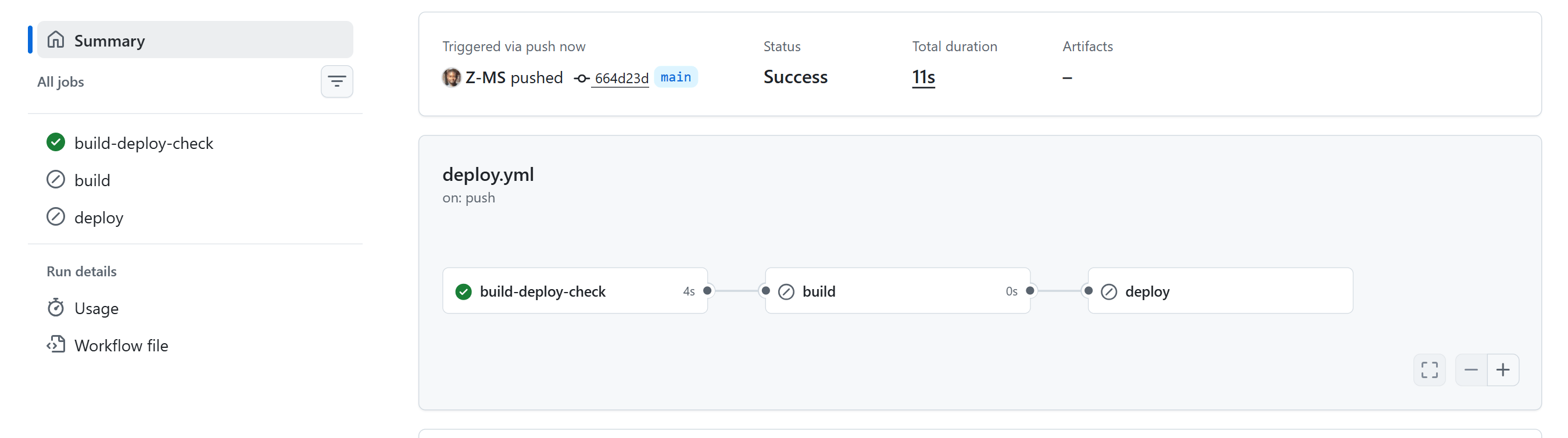
If you go back to ConfigCat, turn on the build and deploy blog flag, and re-run the workflow in GitHub, you should see all the jobs run.
Conclusion
GitHub Actions already gives you powerful tools for building, testing, and deploying your projects. But when you want to control CI/CD jobs dynamically, feature flags can make your workflows more flexible.
In this guide, we used ConfigCat feature flags in GitHub Actions to control the build and deploy jobs.
We covered how to:
- create a feature flag in ConfigCat.
- retrieve ConfigCat credentials and add them to the repository's environment secrets.
- add ConfigCat's GitHub Action to the workflow and set the jobs to run based on the value of the feature flag.
Resources
For more on feature flags, check out other articles on the ConfigCat blog. You can also stay up to date with ConfigCat on Facebook, X, GitHub, and LinkedIn.