How to Use Feature Flags in Rust


Feature flags let you enable or disable features in your Rust application without changing or redeploying your code. They're useful for testing new functionality, managing gradual rollouts, and controlling which users can access specific features.
In this tutorial, we'll use the ConfigCat Rust SDK to build a cargo delivery simulation with two driving modes: Standard and Turbo. A feature flag will determine which mode the truck uses.
You'll learn how to set up the SDK, evaluate a feature flag in Rust, and switch between the two modes from the ConfigCat Dashboard.

Getting Started With Feature Flags in Rust
Our application will simulate a delivery truck with two driving modes:
- Standard mode: The truck accelerates from 0 to 60 mph in 10 seconds.
- Turbo mode: The truck accelerates from 0 to 60 mph in 3.5 seconds.
We'll represent the acceleration with a progress bar in the terminal and use a feature flag to select the driving mode.
Prerequisites
Before you begin coding, double-check that you have the following:
- Rust installed. Installing Rust with
rustupalso installs Cargo, which we'll use to create the project, manage dependencies, and run the application. - A ConfigCat account. You can sign up for the Forever Free plan.
- A code editor of your choice. We'll use Visual Studio Code, but any editor that supports Rust will work. If you're using VS Code, the rust-analyzer extension provides code completion, diagnostics, and navigation.
- Have Git installed if you want to clone the sample project.
Clone the sample from GitHub using the following link: https://github.com/configcat-labs/feature-flags-in-rust-sample
Step 1: Set Up Your Rust Project
First, let's create a Rust project and install the dependencies we'll need.
Create a new Cargo project
Choose or create a new folder on your computer for the app. Then, navigate to the folder in your terminal, create a new Cargo app, and navigate into the app's folder:
cargo new feature-flags-in-rust-sample
cd feature-flags-in-rust-sample
Install the ConfigCat Rust SDK
Install the configcat crate:
cargo add configcat
Alternatively, add it directly to your Cargo.toml file:
[dependencies]
configcat = "0.1.7"
Add Tokio
We'll also need to add Tokio, an asynchronous runtime for Rust. Tokio allows us to use the ConfigCat SDK's async methods and provides the timer used to animate the truck's progress in the terminal.
Install Tokio with all features enabled:
cargo add tokio --features full
Your Cargo.toml file should now look similar to this:
[package]
name = "feature-flags-in-rust-sample"
version = "0.1.0"
edition = "2024"

[dependencies]
configcat = "0.1.7"
tokio = { version = "1.53.2", features = ["full"] }
Now we have all the dependencies the app needs. Let's create a ConfigCat feature flag to use when we code the app.
Step 2: Create the Feature Flag in ConfigCat
Log in to your ConfigCat Dashboard, and open the Product and Config where you'd like to create the flag. Click the ADD FEATURE FLAG button at the top left of the page, and enter the following details:
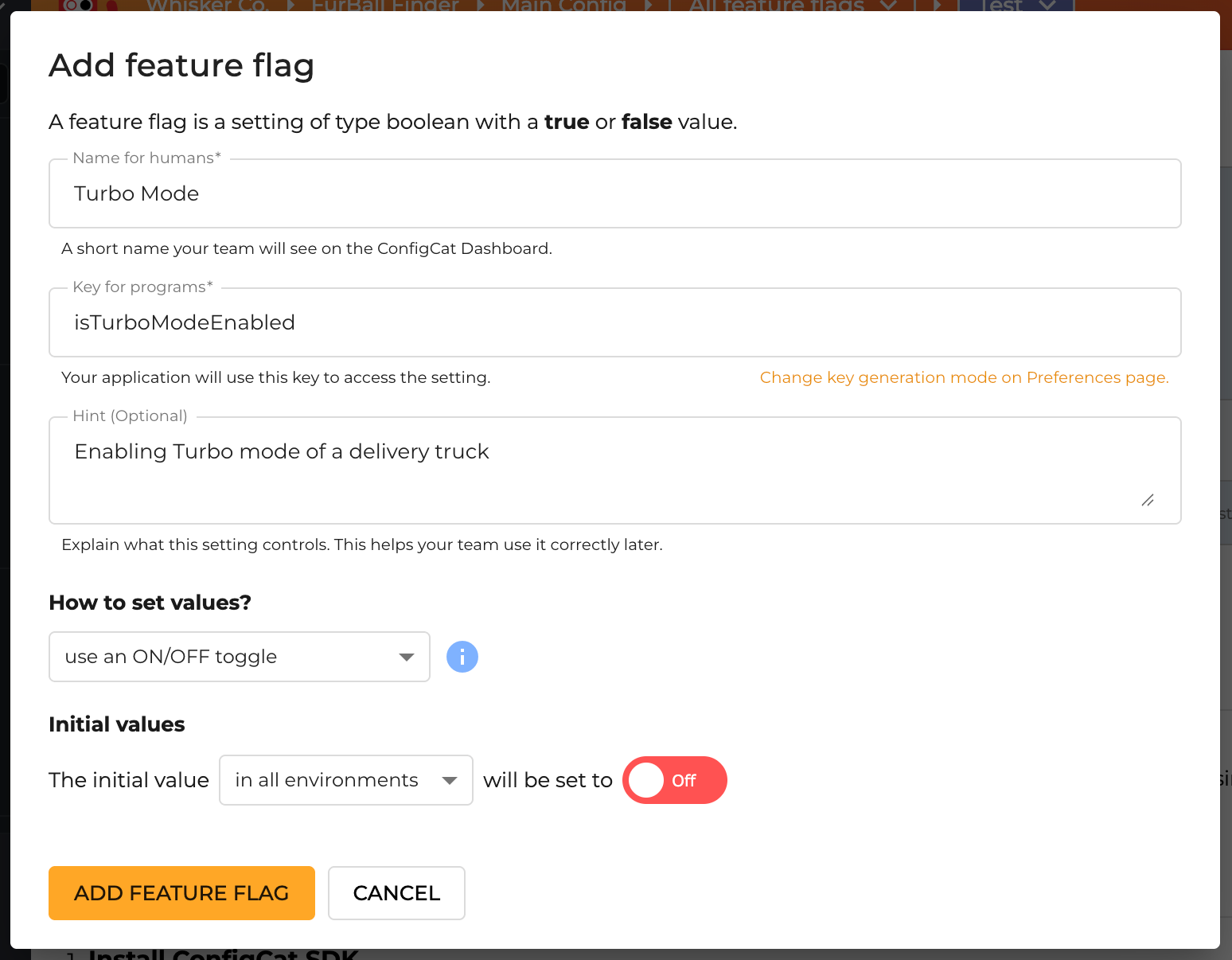
Then, click the ADD FEATURE FLAG button to create the feature flag.
Make sure the feature flag key is exactly isTurboModeEnabled. We'll use this key in our Rust code to evaluate the flag. For now, leave the flag switched Off. We'll enable it later to see how it changes the truck's behavior.
Step 3: Add Feature Flag Logic to Your Rust App
We'll split our Rust application into two files: truck.rs and main.rs. The truck.rs file will handle the acceleration simulation, while main.rs will use ConfigCat to determine which driving mode to activate. This keeps the simulation logic separate from the feature flag that controls it.
Create the truck simulation
In the src folder, create a new file called truck.rs. This file will contain the accelerate function that animates the truck's progress in the terminal. We'll declare truck.rs as a module in main.rs, allowing us to call truck::accelerate() and pass in the appropriate duration. This will be 3.5 seconds for Turbo mode or 10 seconds for Standard mode, depending on the feature flag's value.
This simulation uses a progress bar to represent acceleration. It doesn't calculate real vehicle physics; it simply animates the truck's progress over the selected duration.
use std::io::{self, Write};
use std::time::{Duration, Instant};
use tokio::time::sleep;

pub async fn accelerate(duration: f64) {
    const PROGRESS_BAR_LENGTH: usize = 20;

    let start = Instant::now();

    loop {
        let elapsed = start.elapsed().as_secs_f64();
        let progress = (elapsed / duration).min(1.0);

        let filled = (progress * PROGRESS_BAR_LENGTH as f64).round() as usize;
        let empty = PROGRESS_BAR_LENGTH - filled;

        let progress_bar = format!("{}{}", "█".repeat(filled), "░".repeat(empty));

        let percentage = (progress * 100.0).round() as u32;

        print!(
            "\r🚚 [{}] {:>3}%  {:.1}s",
            progress_bar,
            percentage,
            elapsed.min(duration)
        );

        io::stdout().flush().unwrap();

        if progress >= 1.0 {
            break;
        }

        sleep(Duration::from_millis(100)).await;
    }

    println!();
    println!("\n🏁 0-60 mph in {:.1} seconds", duration);
}
Here's how it works:
Instant::now()records when the simulation starts.- The loop calculates progress based on the elapsed time and the selected duration.
- The progress bar updates every 100 milliseconds using Tokio's asynchronous
sleep()function. - Once the progress reaches 100%, the simulation displays the acceleration time and finishes.
Because the duration is passed as an argument, the same function works for both driving modes.
Evaluate the feature flag in Rust
In the src/main.rs file, inside the main() function, we'll create the ConfigCat client and use it to evaluate the feature flag. Based on the flag's value, we'll call truck::accelerate() with TURBO_TIME when the flag is enabled and STANDARD_TIME when it is disabled.
use configcat::*;
mod truck;

const STANDARD_TIME: f64 = 10.0;
const TURBO_TIME: f64 = 3.5;

#[tokio::main]
async fn main() {
    let client = Client::new("#YOUR-SDK-KEY#").unwrap();

    let is_turbo_mode_enabled = client.get_value("isTurboModeEnabled", false, None).await;

    if is_turbo_mode_enabled {
        println!("⚡️ TURBO MODE");
        truck::accelerate(TURBO_TIME).await;
    } else {
        println!("🚚 STANDARD MODE");
        truck::accelerate(STANDARD_TIME).await;
    }
}
Reuse a single ConfigCat client instance throughout your application rather than creating a new one each time you evaluate a flag. This allows the SDK to reuse its cached configuration and avoid creating unnecessary client instances and background polling tasks. If your application uses multiple SDK Keys, create a separate client for each key.
Understanding get_value()
The get_value() method evaluates a feature flag and returns its value. In our example, we call:
client.get_value("isTurboModeEnabled", false, None).await;
This method takes three arguments:
"isTurboModeEnabled": The feature flag key we created in the ConfigCat Dashboard.false: The fallback value. If the flag doesn't exist or can't be evaluated, the SDK returnsfalse, keeping the truck in Standard mode.None: An optional User Object. We don't need one yet because our example doesn't use user targeting.
The .await keyword is used because get_value() is an asynchronous method. If the flag evaluates to true, the application runs the Turbo mode simulation. Otherwise, it uses Standard mode.
How does ConfigCat evaluate feature flags?
The ConfigCat Rust SDK downloads feature flag configurations from the ConfigCat CDN and caches them locally. When your application calls get_value(), the SDK evaluates the flag using the cached configuration. This means feature flag evaluation doesn't require a separate network request every time.
By default, the SDK uses Auto polling mode, which checks for configuration updates every 60 seconds. You can change a flag in the ConfigCat Dashboard without redeploying your Rust application, and subsequent evaluations can use the updated configuration once the SDK has fetched it.
Step 4: Test Your Feature Flag
Now that we've added the feature flag to our Rust application, let's see it in action.
Test both modes
-
Add your ConfigCat SDK Key to the
main.rsfile. -
With the feature flag set to Off in your ConfigCat Dashboard, execute the
cargo runcommand and you should see the following printed in your terminal:feature-flags-in-rust-sample % cargo runFinished `dev` profile [unoptimized + debuginfo] target(s) in 0.25sRunning `target/debug/feature-flags-in-rust-sample`🚚 STANDARD MODE🚚 [████████████████████] 100% 10.0s🏁 0-60 mph in 10.0 secondsBecause the flag is off, the application uses the
STANDARD_TIMEconstant and completes the simulation in 10 seconds. -
Turn the feature flag On, click the SAVE & PUBLISH CHANGES button, then run the app again. You should see the following output in your terminal:
feature-flags-in-rust-sample % cargo runFinished `dev` profile [unoptimized + debuginfo] target(s) in 0.27sRunning `target/debug/feature-flags-in-rust-sample`⚡️ TURBO MODE🚚 [████████████████████] 100% 3.5s🏁 0-60 mph in 3.5 seconds
This time, the application evaluates the flag as true and runs the Turbo mode simulation. Notice that we didn't need to change or recompile our Rust source code to switch between the two modes. We only updated the flag in the ConfigCat Dashboard and ran the application again.
In this CLI example, each run creates a new process and evaluates the flag once. In a long-running application, the SDK can fetch configuration updates in the background, allowing subsequent flag evaluations to use the latest available configuration.
Customizing the ConfigCat Rust SDK
You can also customize the client using the builder pattern to configure polling intervals, data governance options, and other settings:
use std::time::Duration;
use configcat::{Client, PollingMode, DataGovernance};

let builder = Client::builder("#YOUR-SDK-KEY#")
    .polling_mode(PollingMode::AutoPoll(Duration::from_secs(60)))
    .data_governance(DataGovernance::EU);

let client = builder.build().unwrap();
This example configures two options:
PollingMode::AutoPoll(Duration::from_secs(60)): Sets the SDK to automatically fetch configuration updates every 60 seconds. This is also the default polling interval.DataGovernance::EU: Configures the SDK to use ConfigCat's EU-only CDN infrastructure. Your ConfigCat Data Governance settings must match this option.
The builder pattern also supports other configuration options, including alternative polling modes and custom cache settings. You can explore them in the Rust SDK documentation.
User Targeting in Rust
So far, our feature flag applies to the entire application. But what if we want to enable Turbo mode for specific drivers instead of everyone?
ConfigCat supports user targeting, allowing you to serve different flag values based on user attributes such as an identifier, country, or subscription plan.
To use targeting in Rust, create a User Object and pass it to get_value():
let user = User::new("driver-123");

let is_turbo_mode_enabled = client
    .get_value("isTurboModeEnabled", false, Some(user))
    .await;
Here, driver-123 represents a unique driver identifier. You can configure Targeting Rules in the ConfigCat Dashboard to enable Turbo mode for that driver or a specific group of drivers. The SDK evaluates the flag against those rules using the attributes provided in the User Object.
Percentage Rollouts in Rust
You don't have to enable a new feature for every user at once. With percentage rollouts, you can gradually introduce a feature to a subset of users. For example, you could enable Turbo mode for 10% of drivers, monitor how the feature performs, and then increase the percentage over time.
ConfigCat uses an evaluation attribute, typically the User Object's unique identifier, to assign users consistently to percentage groups. This helps ensure that a driver receives the same flag value across repeated evaluations when the rollout configuration remains unchanged.
You can use the same Rust code from the previous example. The percentage allocation is configured in the ConfigCat Dashboard, so you don't need to implement the rollout logic yourself.
Conclusion
You've now seen how to use feature flags in Rust with the ConfigCat SDK. By adding a single feature flag to our cargo delivery application, we can switch between Standard and Turbo modes without modifying or redeploying the code.
The same approach works in real-world Rust applications, where feature flags can help you control releases, test new functionality, and gradually introduce changes to users. As you add more flags, it's also worth following feature flag best practices to keep your configuration organized and avoid accumulating stale flags.
Want to try it in your own Rust application? Create a free ConfigCat account and start experimenting with feature flags.
Deploy any time, release when confident.
You can stay up to date with ConfigCat on X, Facebook, LinkedIn, GitHub, and the News & Product Updates page.