Feature Flag User Targeting: How It Works in ConfigCat


Would you like to catch bugs before your users do? If your answer is yes, then learning how to implement user targeting in your next feature release is essential. The core idea behind user targeting is to control who gets a new feature or experience.
In situations where you need to test a new feature with a smaller audience first, user targeting helps you learn from real users without putting the full release at risk.
Coming up, we'll discuss two ways to implement user targeting using ConfigCat: deterministic targeting, where you hand-pick exactly who gets the feature by name, email, company, or any other attribute you know about your users, and percentage targeting, where you define percentage groups and let users land consistently in the same experience every time.
What Is User Targeting?
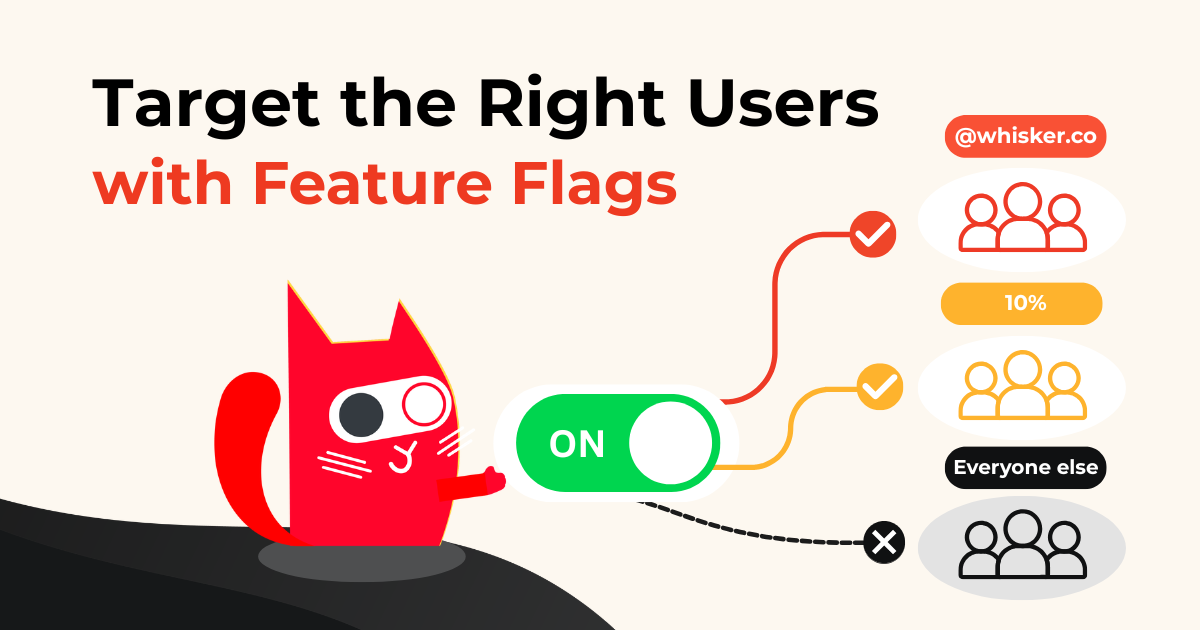
User targeting is the process of serving features to specific users or groups based on attributes or conditions.
These conditions can be based on information your application already knows about the user, including:
- A unique user ID
- Email address
- Country
- Company or organization
- Subscription plan
- Account type
- User role
- Application version
- Any other custom user attribute
This lets you deliver the right product features to the right users without maintaining separate versions of your application.
For product and engineering teams, this means releases no longer have to be all-or-nothing events. You can test a feature in production, collect feedback from a controlled audience, and gradually expand the rollout when you're confident.
You may already be familiar with software delivery strategies such as beta testing, A/B testing, gradual rollouts, and canary releases. User targeting is one of the mechanisms that makes these strategies possible.
In modern software delivery, targeting rules are usually attached to feature flags. Your application passes relevant user attributes to the feature flag SDK, which evaluates those attributes against the rules you configured. The result determines which feature flag value the user receives.
Because targeting is controlled through the feature flag configuration, you can change who receives the feature without modifying or redeploying your application.
How to Deterministically Target Users
This is often called deterministic targeting because the result is based on defined conditions, not a percentage split or a fresh random decision. If a user matches the rule, they receive the value you selected. If they don't, they move on to the next rule or receive the default value.
Before diving into the mechanics of deterministic user targeting, let's start with an example:
Your engineering team has added a new navigation experience to your application. It looks good in development, but before releasing it to customers, you want your employees to test it in production. So how do you target them?
First, you need to find an attribute they have in common. This could be:
- A company email address
- An employee account type
- A company or organization ID
- A custom
IsEmployeeattribute - Membership in an internal testing segment
For this example, everyone at your company uses an email address ending in @whisker.co. Let's use that to target them with ConfigCat.
Step 1: Create a Feature Flag with a Targeting Rule
Log in to your ConfigCat Dashboard and create a new boolean feature flag.
Give it a clear name, such as: New App Navigation. You can use the following feature flag key: newAppNavigation. The key is what you'll reference from your application code, so choose something descriptive that you won't need to change later.
Next, click the + IF button > Target users, and configure a targeting rule so only employees get the feature:
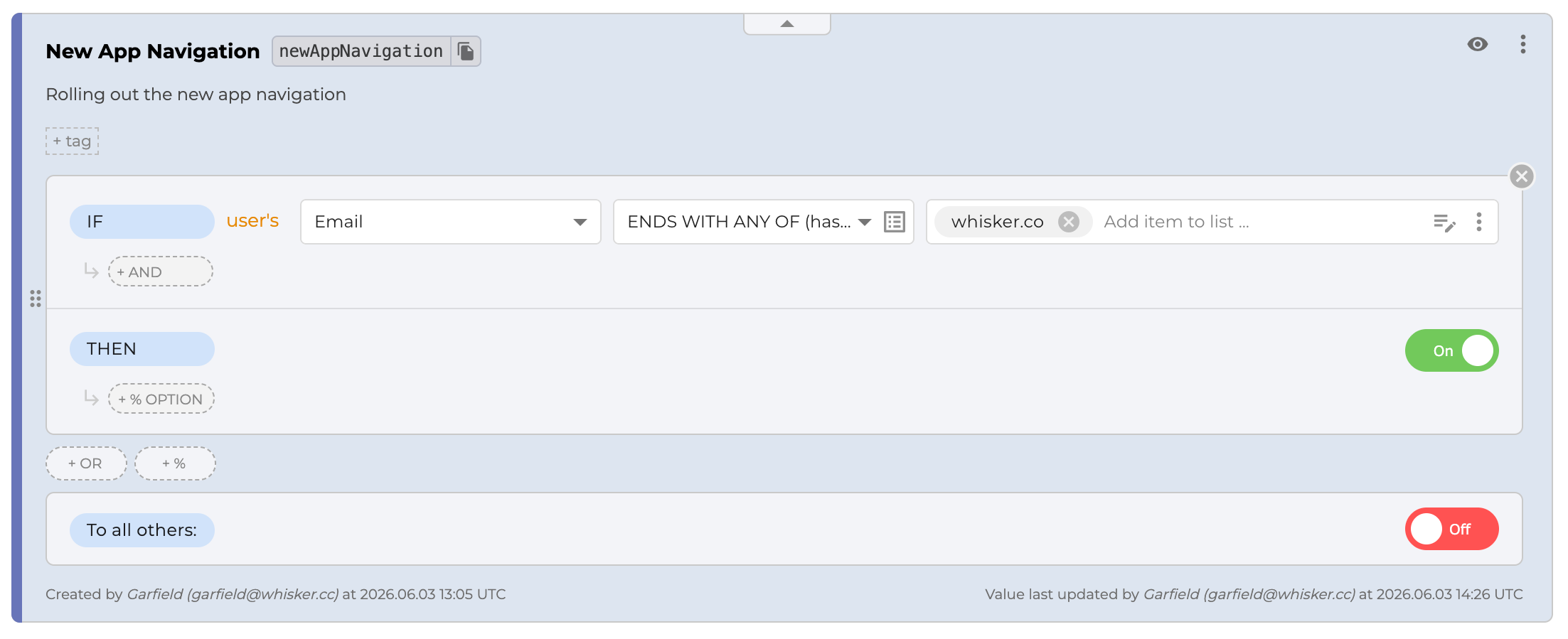
ConfigCat supports a range of User Condition comparators for text, numbers, dates, semantic versions, and other attribute types.
Step 2: Set up ConfigCat
- Install the appropriate ConfigCat SDK for your language of choice.
For this example, we'll use the Browser (JavaScript) SDK.
npm i @configcat/sdk
- In my JavaScript file, I'll import the SDK for use in the next step:
import * as configcat from "@configcat/sdk/browser";
Step 3: Evaluate the Feature Flag with a User Object
For user targeting to work, the ConfigCat SDK needs to know who the current user is. In your code, pass the User Object to the getValueAsync method and use the boolean value that it returns:
const configCatClient = configcat.getClient("#YOUR-SDK-KEY#");
const value = await configCatClient.getValueAsync(
'newAppNavigation', // Feature name set up in the Dashboard
false, // Default value
user, // User object containing the email address
);
if (value) {
showNewNavigation();
} else {
showOldNavigation();
}
The SDK reads the email address from the User Object and compares it with the targeting rule you created in the Dashboard. Because [email protected] ends with the company domain, Jane gets the ON value and sees the new navigation.
A user with a different email address, such as [email protected], does not match the rule and continues to see the old navigation.
The second argument passed to getValueAsync is the fallback value. The SDK returns it if something unexpected prevents the feature flag from being evaluated.
For a new feature, false is often the sensible fallback because it keeps the existing experience in place. The right choice, however, depends on the feature and what your safest application state is.
You can learn more about user targeting in ConfigCat here.
How Are Multiple Targeting Rules Evaluated?
You can add more than one targeting rule to the same feature flag. ConfigCat evaluates these rules from top to bottom. As soon as it finds the first rule whose conditions match, it returns the value defined by that rule.
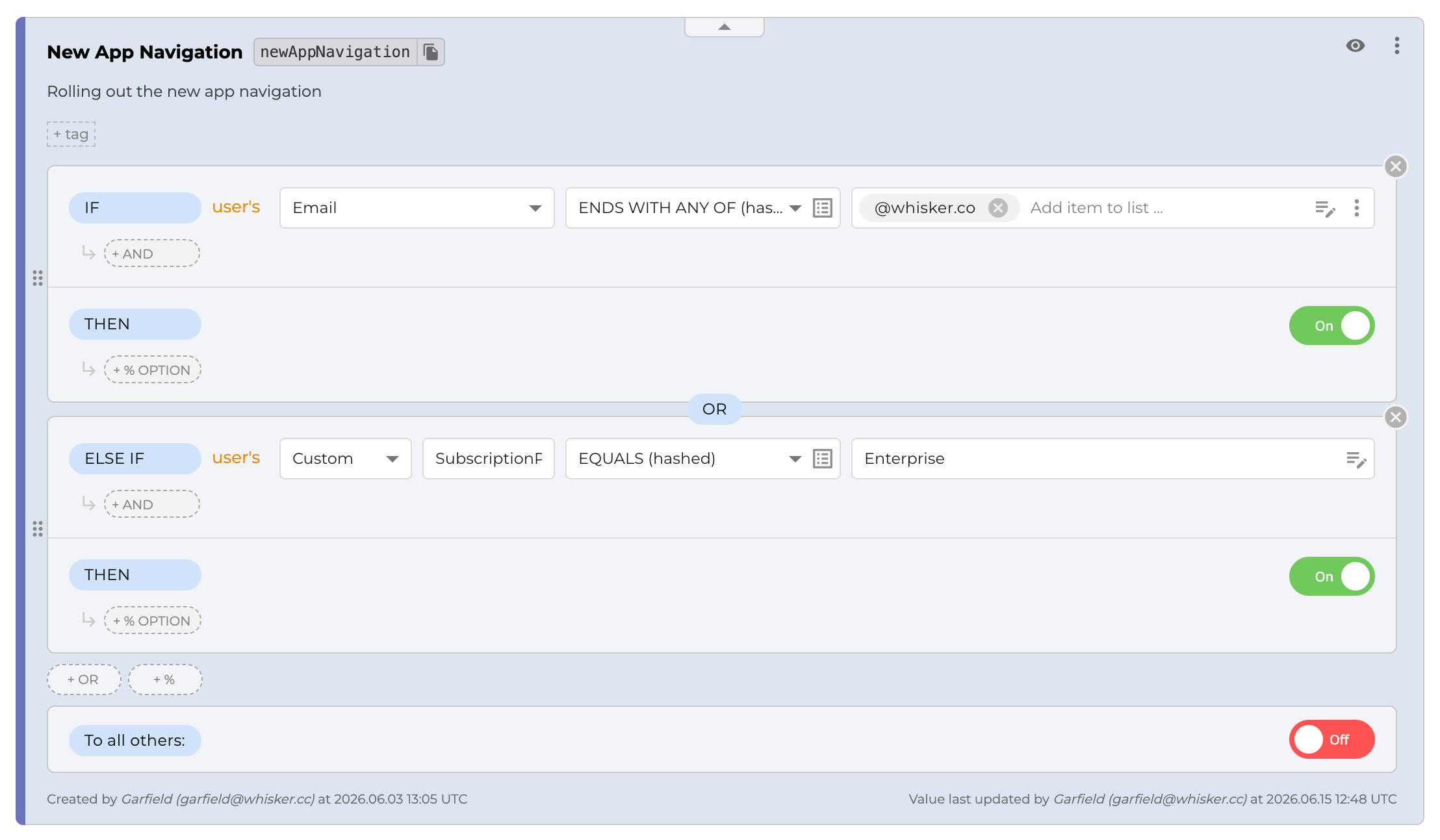
An employee matches the first rule and receives ON. An Enterprise customer who is not an employee skips the first rule, matches the second, and also receives ON. A user who matches neither rule receives OFF.
Because the first matching rule wins, the order matters. Put specific exceptions and higher-priority audiences above broader rules.
Your application also needs to provide every user attribute referenced by the rule. If a rule expects a SubscriptionPlan attribute but your User Object does not contain one, the SDK cannot evaluate that condition as expected. It will skip the rule and continue evaluating the remaining options.
How to Use Percentage-Based Targeting
Let's return to our new navigation. Your employees have tested it, the feedback is positive, and you're ready to put it in front of real customers. You're still not quite ready to release it to everyone, though.
The old navigation generates an average of 100 sign-ups a day. You want to find out whether the new version performs better, so you decide to show it to 10% of users while the other 90% continue to receive the current navigation.
To do this, remove the existing targeting rule, add Percentage Options to your feature flag by clicking the + % button, and set the on value to 10%. You'll notice the off value is automatically set to 90%:
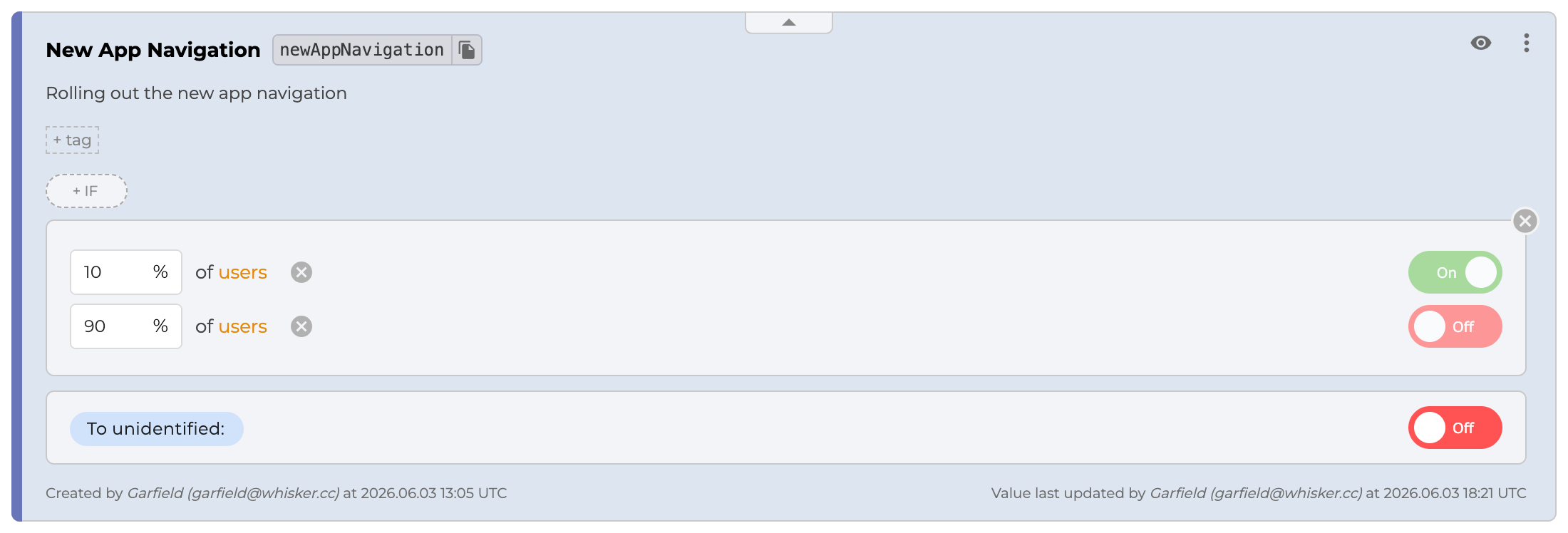
That's all the Dashboard setup you need. Your application code stays exactly the same. The SDK still evaluates the newAppNavigation flag using the same getValueAsync call and User Object. You can then use your analytics or experimentation platform to compare the two groups.
After running the experiment for a few weeks, you notice the new navigation increases sign-ups from 100 to 130 a day. Great news! You can now gradually increase the percentage:
10% → 25% → 50% → 100%
This lets you move from a small test to a full release without changing or redeploying your code.
ConfigCat decides which version each user receives. You will still need an analytics or experimentation platform to measure what those users do and determine whether the result is meaningful.
Combining Targeting Rules and Percentage Options
You don't have to run the percentage split across your entire user base. You can place Percentage Options inside a targeting rule so only users who match that rule participate in the rollout.
For example:
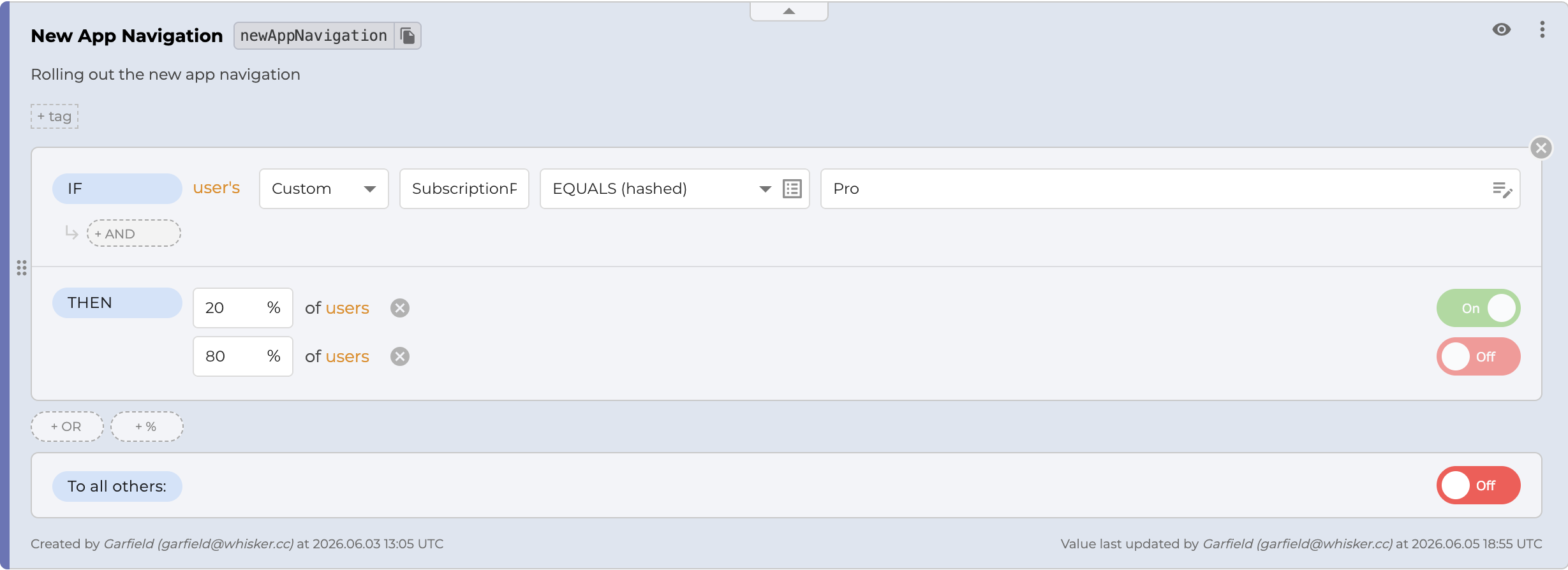
In this setup, only Pro users take part in the 20% rollout. Everyone on a different plan receives OFF.
This is useful when you want to:
- Test a product feature with part of your beta group
- Release a feature to a percentage of Enterprise customers
- Run an experiment in one geographic region
- Gradually enable a feature for users on a particular application version
By combining rule-based targeting with percentage-based targeting, you can be very precise about who gets included in a rollout.
How Are Percentages Calculated?
So, how does ConfigCat decide who lands in that 10% group? And more importantly, will the same user always see the same version?
ConfigCat does not make a fresh random decision every time a feature flag is evaluated. By default, the SDK calculates the user's percentage group from:
- The feature flag key
- The user's identifier
The user identifier is the default Percentage Evaluation Attribute, although you can configure a different user attribute when needed. The SDK combines these values and calculates a stable number between 0 and 99.
For a rollout configured as:
10% → ON 90% → OFF
You can think of the groups like this:
0–9 → ON 10–99 → OFF
Suppose the combination of the newAppNavigation key and the user456 identifier places the user at number 6. Because 6 is below 10, the user lands in the first group and sees the new navigation. A user placed at number 42 stays in the 90% group and sees the old navigation.
The ConfigCat SDK handles the calculation for you. You don't need to generate, store, or synchronize the percentage assignment yourself.
It is possible to have more than two groups to which you can serve variations of a feature. In this case, you use text and number values instead of on/off toggles. See the docs for more details.
Percentages are:
-
Sticky - A user's assigned number stays fixed, so raising or lowering the percentage only moves the threshold, never reshuffles users.
user456sits at 6, so they're in the ON group at 10% and stay in it at 60%. Only dropping ON below 7% would move them out. -
Consistent - The same user will be served the same value across SDKs and devices because the same hashing is used.
-
Random - The same user might get different values for the same percentage split in the case of different feature flags because the final value depends on the feature flag's key and percentage evaluation attribute.
Don't Worry About Privacy
The good news is that ConfigCat does not need to receive your User Object every time a feature flag is evaluated. After the ConfigCat SDK is initialized, it downloads the feature flag configuration from ConfigCat's CDN and stores it in a local cache. This configuration contains the feature flags, values, targeting rules, and percentage options you set up in the Dashboard.
When your application calls getValueAsync, the SDK compares the User Object with the locally cached rules and calculates the results inside your application. This means the user attributes required for targeting do not need to be sent to ConfigCat during evaluation. It also means flag evaluations can happen quickly without making another network request every time.
The SDK refreshes its configuration based on the polling mode you selected. In auto polling mode, for example, it periodically checks the CDN for configuration changes.
There is one important thing to keep in mind when using feature flags in a frontend or mobile application. The configuration needed for local evaluation is downloaded to the application. Someone inspecting the application may therefore be able to see feature flag keys, values, and readable comparison values used in the targeting rules. ConfigCat SDK keys are read-only, so they cannot be used to change your feature flag configuration. Still, you should avoid placing sensitive targeting values directly into readable frontend rules.
Protecting Sensitive Targeting Values
Suppose you want to target one specific person by email address. You probably don't want that email address to appear as plain text in the configuration downloaded by your frontend application.
For cases like this, ConfigCat provides confidential text comparators.. When dealing with sensitive information, it is recommended that you use the Hashed option for your comparison values:
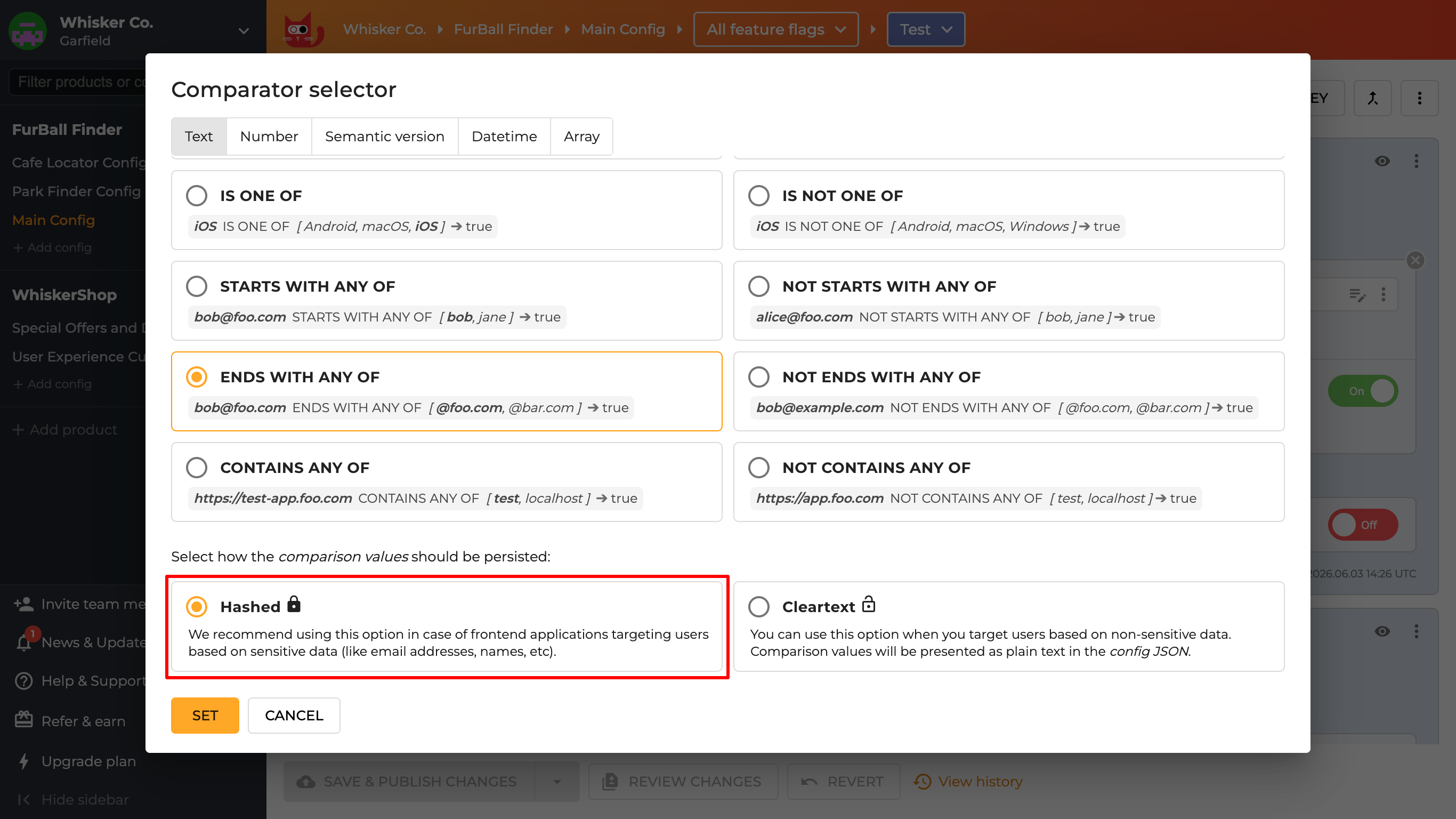
When you use a confidential comparator, ConfigCat hashes the comparison values before including them in the downloaded configuration. On the application side, the SDK hashes the corresponding value from the User Object locally and compares the two hashed values.
And the best part is that your calls to getValueAsync will remain the same, so there's no need to change your code in any way.
Confidential comparators help hide the original comparison values. However, they do not make the entire frontend feature flag configuration a secret. If the feature flag names, rules, or values themselves are sensitive, evaluate the feature flag in your backend and send only the final result to your frontend.
You can learn more about this in our Frontend Feature Flags vs Backend Feature Flags blog post.
Summary
Hopefully, you now have a better understanding of ConfigCat's targeting features. ConfigCat supports simple feature toggles, user segmentation, and A/B testing, and has a generous Forever Free plan for low-volume use cases or those just starting out. Next time you're doing a canary release or a beta test, you can comfortably use the targeting features while knowing how things work under the hood.
Here's a quick recap of the things we covered.
- Defined user targeting and how it attaches to feature flags.
- Set up deterministic targeting with a User Object to release a feature by email.
- Saw how rules are evaluated locally on the device, and how the Hashed option keeps sensitive values private.
- Used percentage-based targeting to roll the feature out to a slice of users.
- Covered how percentages are calculated, and why they're sticky, consistent, and random across flags.
Resources
Here are some resources you might find helpful.
You can stay up to date with ConfigCat on X, Facebook, GitHub, and LinkedIn.