Visual Studio Code - Manage your feature flags from VSCode
ConfigCat's Visual Studio Code extension to manage feature flags from Visual Studio Code.
Feature overview
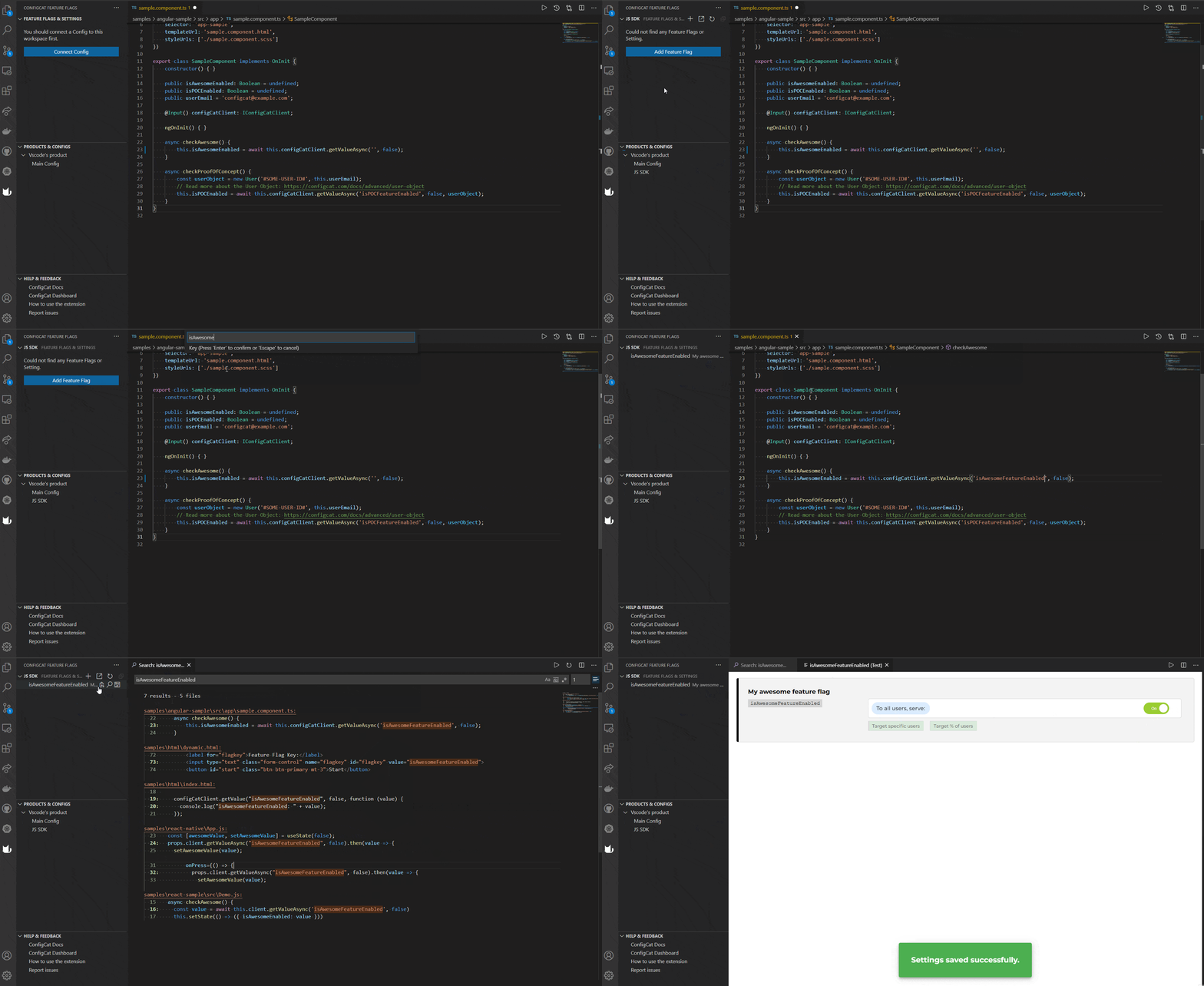
List of Features
- Turn features On / Off right from Visual Studio Code.
- Add Targeting or Percentage Rules from Visual Studio Code.
- Find Feature Flag usages in your code.
- Create Feature Flags within Visual Studio Code.
- Copy a Feature Flag's key to the clipboard.
- View your Products & Configs.
- Create Configs within Visual Studio Code.
- Connect a Config to your Workspace.
- Open a Config on ConfigCat Dashboard.
Install extension
Visual Studio Code Marketplace
- In the Visual Studio Marketplace, open the ConfigCat Feature Flags Extension.
- Click on the Install button.
- Configure extension (see below)
Install within Visual Studio Code
- In Visual Studio Code, open the Extensions page, and search for ConfigCat Feature Flags.
- Click on the Install button.
- Configure extension (see below).
Configure extension
Authentication
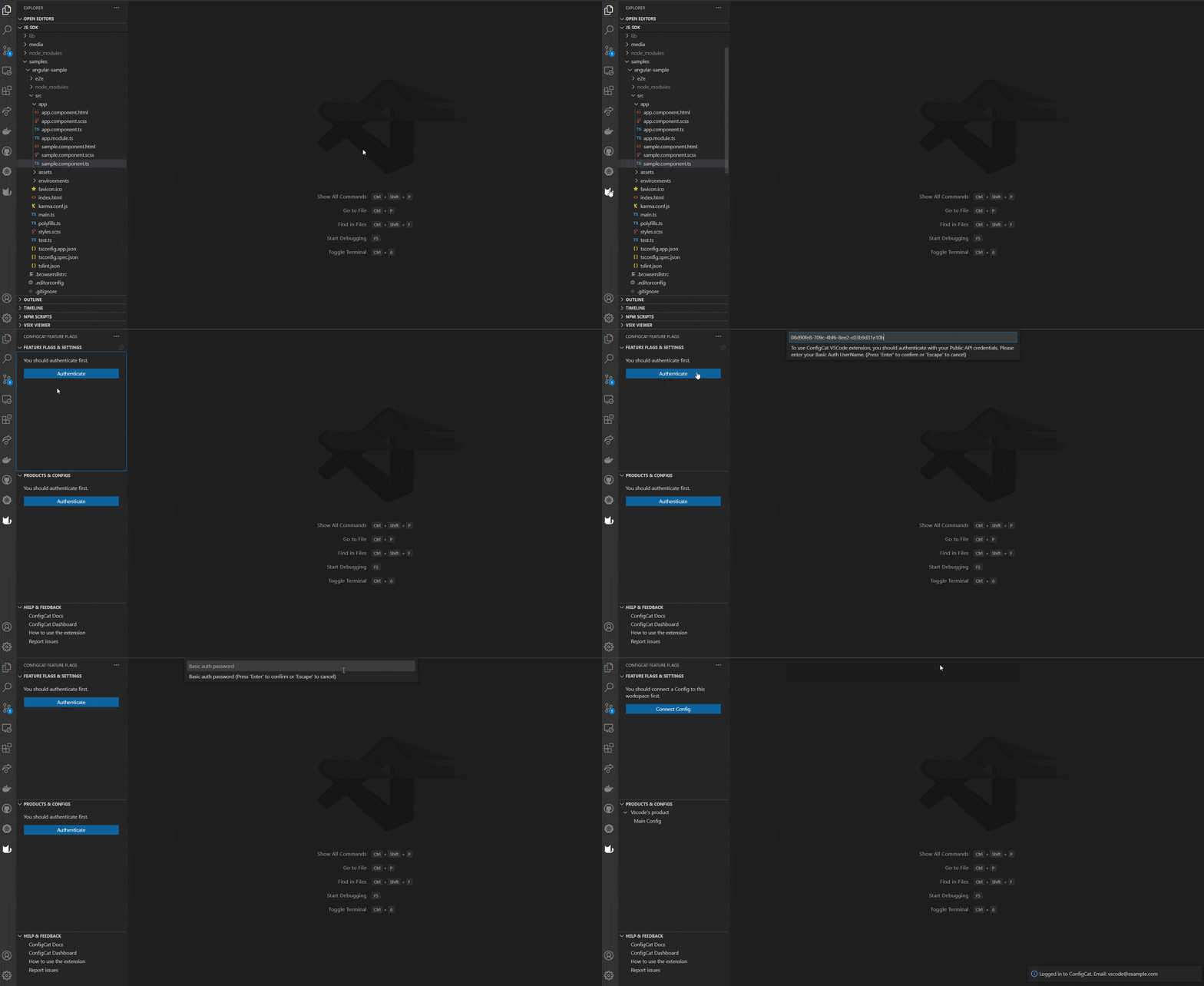
- Get your API credentials for ConfigCat Public Management API.
- Authenticate ConfigCat in Visual Studio Code by
- clicking on the ConfigCat Feature Flags icon on the Activity Bar and clicking on any of the Authenticate buttons.
- or running the
ConfigCat - Log Incommand from the Command Palette.
Advanced
This section is for you if you use a dedicated hosted/on-premise ConfigCat instance. In that case, you can specify your custom ConfigCat URLs in Visual Studio Code. You can do that by executing the Preferences: Open Workspace Settings command from the Command Palette and searching for Extensions/ConfigCat or clicking the manage button on the ConfigCat Feature Flags extension's page. Important settings:
Public Api Base URL: the base url for the ConfigCat Public Management Api. Defaults to: https://api.configcat.com.Dashboard Base URL: the base url for ConfigCat Dashboard. Defaults to: https://app.configcat.com.
Usage
ConfigCat Feature Flags Views
The ConfigCat Feature Flags Views can be opened by clicking on the ConfigCat Feature Flags icon on the Visual Studio Code's Activity Bar. It consists of 3 different view:
Products & Configs View
Manage your products and configs on the Products & Configs View by performing the following actions:
- View all of your Products & Configs.
- Create Configs under a Product.
- Connect a Config to your current Workspace.
- Open your Configs on the ConfigCat Dashboard.
Feature Flags & Settings View
After you successfully connect your ConfigCat Config to your Visual Studio Code Workspace, open the Feature Flags & Settings View and:
- Turn features On / Off right from Visual Studio Code.
- Add Targeting or Percentage Rules from Visual Studio Code.
- View or Update your Feature Flag's value.
- View the connected Config's Feature Flags.
- Create new Feature Flags.
- Copy a Feature Flag's key to clipboard.
- Find your Feature Flag's usages in your code.
Help & Feedback View
The Help & Feedback view provides you some quick links to open ConfigCat's Documentation, ConfigCat's Dashboard and gives you the opportunity to report any issues.