Using Feature Flags in an Angular Application

In today's fast-paced digital landscape, users expect seamless, high-quality software experiences without interruptions. As developers, our challenge is introducing new features and updates without causing downtime. The solution? Feature flags. With feature flags, you can safely roll out new features gradually, ensuring your application remains fully operational while the development process continues.

What are feature flags?
Feature flags allow developers to toggle application features on or off without redeploying code. They are variables that can be modified remotely, eliminating the need to alter the codebase directly. This approach streamlines the process of introducing new features and personalizing user experiences. Not only are feature flags simple to use, but they also integrate seamlessly and work with many programming languages and technologies.
Using Feature Flags in Angular
In this tutorial, I'll show you how to add feature flags to an Angular application quickly. To manage and control the flags, I'll use ConfigCat feature flag service and guide you through each step.
To demonstrate, I'll create a dynamic voting page where users can vote on a randomly fetched image. In a contest scenario, you might want to stop the voting at a specific time or toggle the feature back on later.
You can find the completed application here.
Prerequisites
- Node.js and node package manager
- Basic knowledge of HTML, CSS, and JavaScript
- A code editor installed - For example: Visual Studio Code
Create the Angular application
- The first step in our journey is to install the Angular CLI. Open your terminal and run the following command:
npm install -g @angular/cli
If you already have the Angular CLI installed on your machine, you can update it using:
ng update @angular/cli
- Create a new Angular project using the
ngcommand. If prompted for more information, accept the defaults by pressing enter.
ng new voting-app
To launch the app, navigate to the project folder and run the following command. The --open flag automatically opens the app in a new browser window.
ng serve --open
If everything works correctly, you should see the default Angular app page.
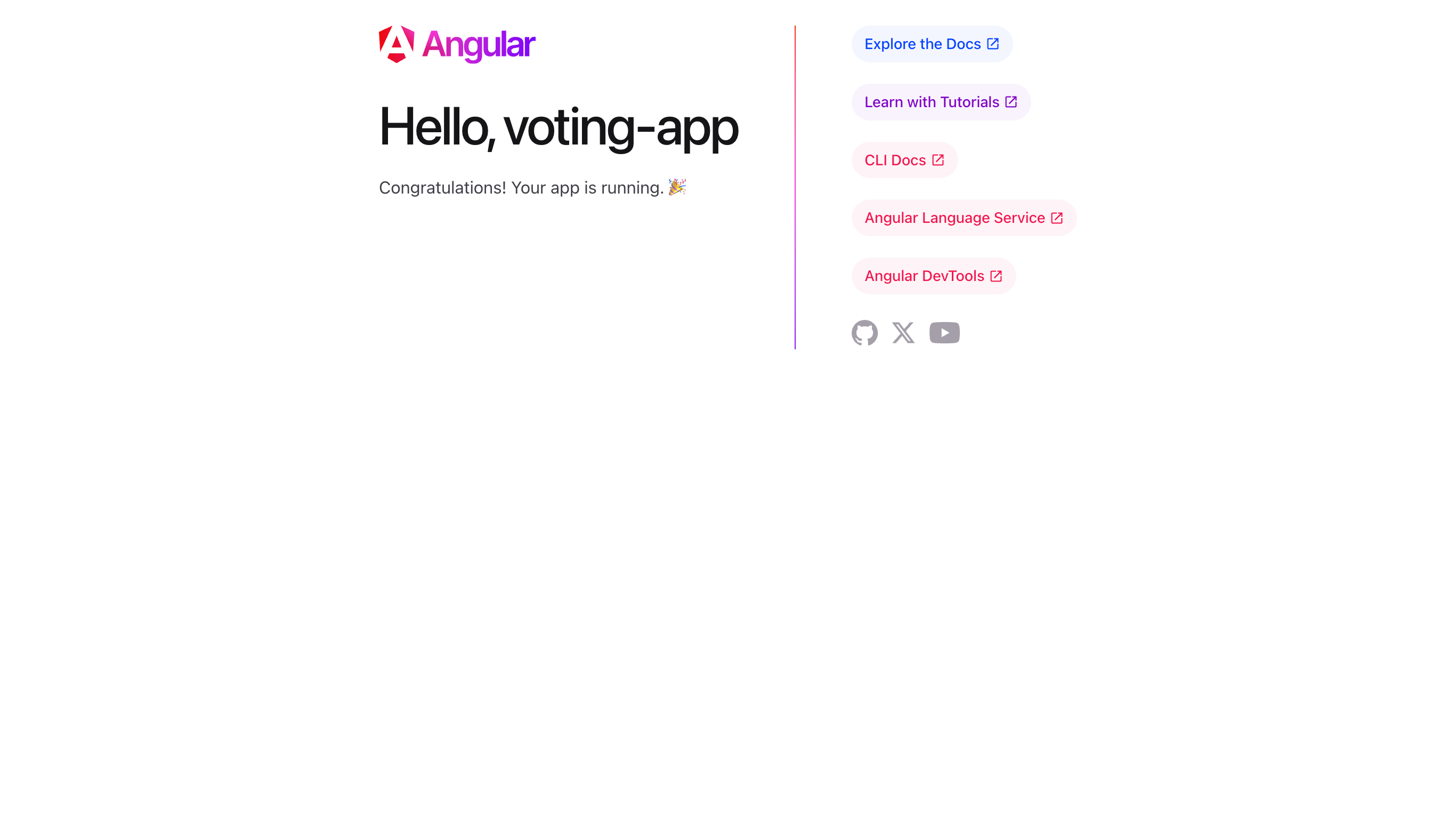
Let us set up the feature flag and add it to the application.
Creating a Feature Flag
Step 1: Head over to your ConfigCat dashboard and click the Add Feature Flag button and create a new flag with the details below.
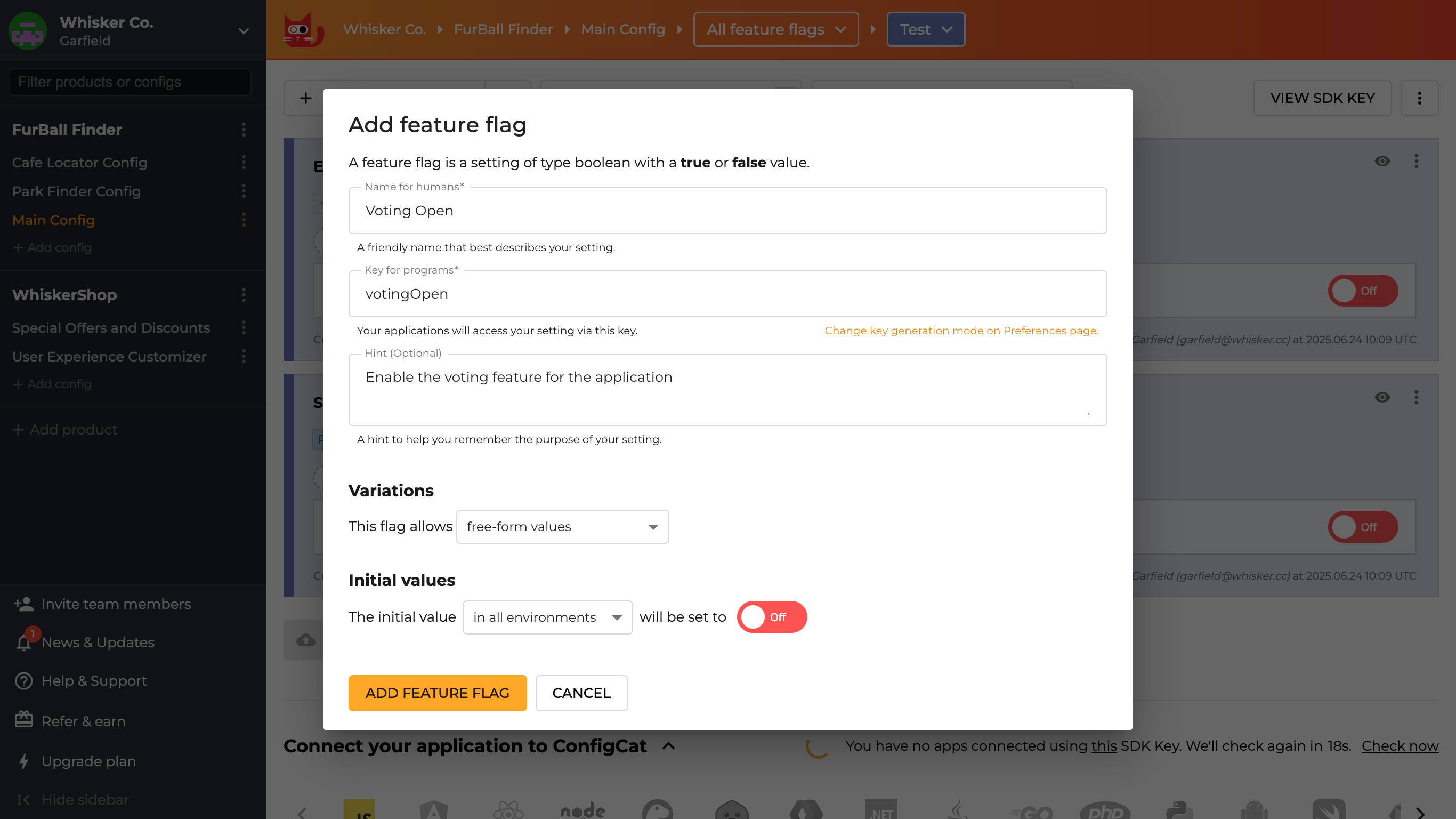
For this sample app, we will use the flag to toggle the feature for all users. However, ConfigCat provides advanced options for targeting specific user groups based on various criteria.
Step 2: Locate your SDK key. Once logged in to the ConfigCat dashboard, you can find it by opening the following link: https://app.configcat.com/sdkkey.
Adding the Feature Flag to Angular
Step 1: Install the ConfigCat Browser (JavaScript) SDK by executing the following command in the terminal:
npm i @configcat/sdk
Step 2: I'll create a reusable service for ConfigCat that can be shared with other parts of the application. You'll need to replace the "SDK-KEY" placeholder with your actual SDK key.
Step 3: Import and use the ConfigCat service in the src/app/app.ts file.
import { Component, inject, signal } from '@angular/core';
import { ConfigCatService } from './configcat.service';
import { VoteFeature } from './vote-feature/vote-feature';

@Component({
  standalone: true,
  imports: [VoteFeature],
  selector: 'app-root',
  templateUrl: './app.html',
  styleUrl: './app.scss',
})
export class App {
  protected readonly title = signal('voting-app');
  private configCatService = inject(ConfigCatService);
  readonly connectionState = this.configCatService.connectionState.asReadonly();

 isVotingFeatureEnabled = this.configCatService.getValue('votingOpen', false);
}
At this point, you will not see any changes in your browser. Let us start by displaying the initial value of our fetched feature flag. Clear the content of the src/app/app.html file and add the following:
<div>Feature flag value: {{ isVotingFeatureEnabled }}</div>
Now that everything is connected, let's update the src/app/app.html file to show the voting feature when the flag is enabled and display a message when it is toggled off.
<div class="container">
  <h1>Welcome to the Voting System</h1>

  <img
    src="https://configcat.com/images/home/logo.svg"
    alt="ConfigCat Logo"
    width="200"
    height="200"
    class="logo"
  />

  @if (connectionState() === 'disabled' || connectionState() === 'error') {
  <p class="error-message">
    Check that you have the correct SDK key and your connection is ok.
  </p>
  } @if (isVotingFeatureEnabled()) {
  <app-vote-feature />
  } @else {
  <div>
    <h3>The vote feature is disabled!</h3>
  </div>
  }
</div>
Step 4 (optional): Now, head to src/app/app.scss and add some CSS. This is optional, but it will give our application a nicer look and feel. Feel free to add your personal touch.
.container {
  display: flex;
  flex-direction: column;
  align-items: center;
  font-family: 'Segoe UI', Tahoma, Geneva, Verdana, sans-serif;
  width: 100%;
  height: 100vh;
  padding: 24px;
  text-align: center;
  background-color: #f9f9f9;
}

.error-message {
  color: orangered;
}
Live Demo
Save the changes, and you should see the following. The voting feature is disabled because the feature flag was turned off.
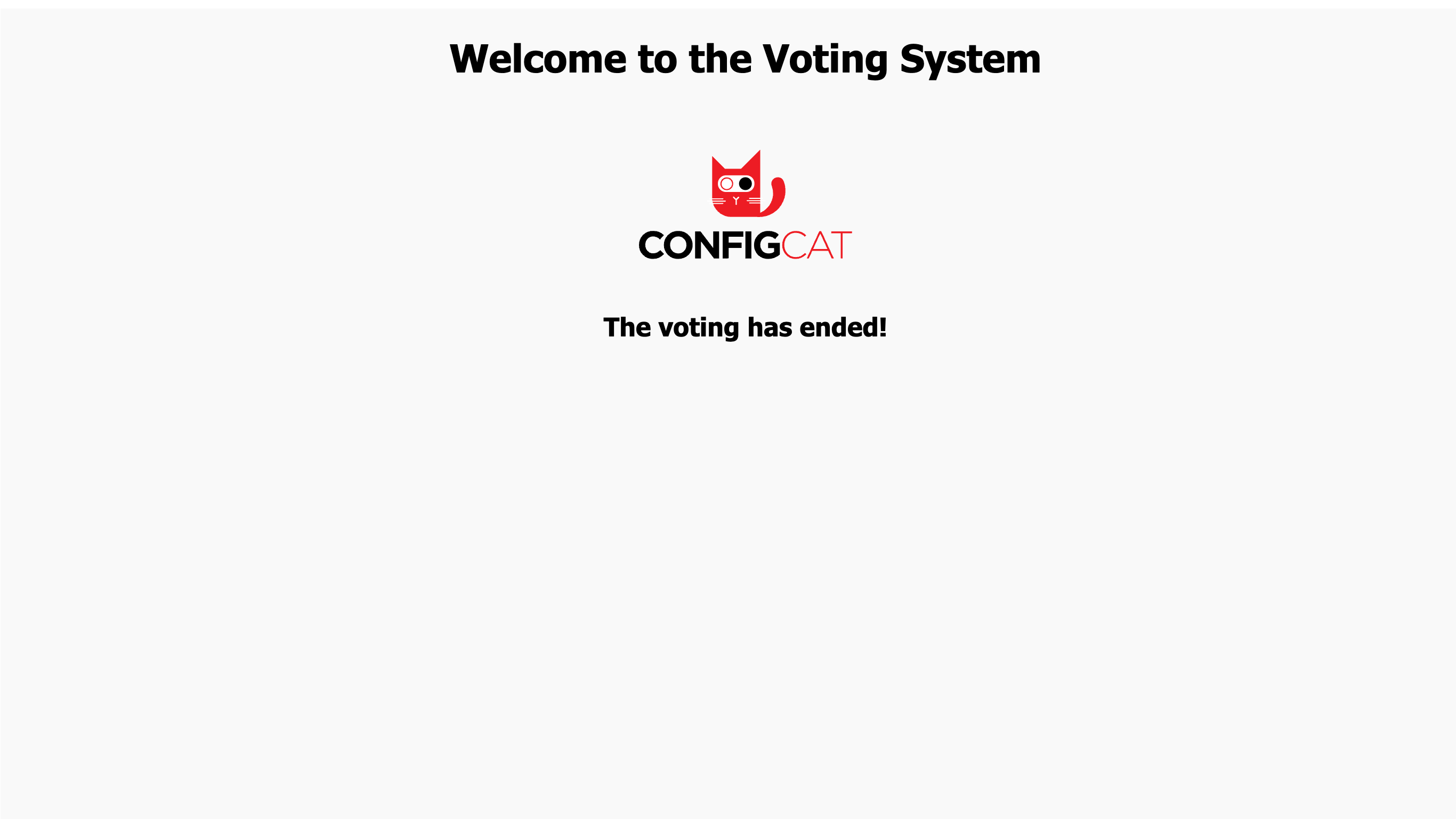
Head to your ConfigCat dashboard and enable the feature flag. Wait a few moments (~30 seconds, the interval set in configcat.service.ts), and you should see the following result:

Conclusion
In just a few steps, you added your first feature flag to an Angular application using the ConfigCat JavaScript SDK and dashboard. As I mentioned earlier, there is a lot more you can do with feature flags, like configuring user segments, running A/B tests, rolling out progressive and canary releases, and much more. ConfigCat supports many of the programming languages and frameworks you're already using.
What do you think? Pretty easy, right? ConfigCat offers a forever free plan for low-volume use cases, perfect for those just starting out.
You can find more information about ConfigCat on X, Facebook, LinkedIn and GitHub.