How to Migrate from Statsig to ConfigCat: Feature Flag Migration Using MCP Servers

In this step-by-step guide, you’ll learn how to automate your Statsig feature flags migration with AI-powered Model Context Protocol (MCP) servers. Instead of writing custom scripts or manually recreating each flag, you can use natural language commands to transfer your entire configuration reducing migration time by up to 80%.
TL;DR: How to Migrate from Statsig?
We are going to set up an AI agent (like Claude Desktop or Cursor) to connect to Statsig through the Statsig MCP server and to ConfigCat through the ConfigCat MCP server. After that, you can simply ask the AI agent to migrate your feature flags from Statsig to ConfigCat. Let’s see how to do this step by step.
Differences between Statsig and ConfigCat
Before diving into the migration, it's helpful to understand how the two platforms map to each other conceptually. While ConfigCat and Statsig share many similar features and concepts, they use different terminology and have some structural differences.
- Statsig Feature Gates are equivalent to Boolean Feature Flags in ConfigCat (simple on/off toggles).
- Statsig Dynamic Configs store JSON payloads. In ConfigCat, the equivalent is a String Setting that stores the JSON as a string.
- Statsig Rules map to Targeting Rules in ConfigCat.
- Both tools use Segments for reusable user groups for targeting and support multiple Environments like Production, Staging, Dev, etc.
You can learn more about how ConfigCat structures Settings, Products and Environments in the ConfigCat Main Concepts documentation.
Prerequisites
- Statsig account
- ConfigCat account - If you don’t have one yet, sign up here for free
- Node.js version 16 or higher installed
What are MCP Servers?
Model Context Protocol (MCP) is an open standard that allows AI assistants to connect with external tools and services. Think of it as giving your AI agent hands to actually perform actions, not just talk about them.
An MCP server acts as a bridge between your AI client (like Claude Desktop) and an external service's API. When you ask your AI assistant to "list all feature flags in my project," the MCP server translates that natural language request into the appropriate API calls and lists your flags.
Creating ConfigCat Public API Credentials
The ConfigCat MCP server needs a ConfigCat Public API credential to access the ConfigCat's public management API and perform actions like managing feature flags, targeting rules or segments etc.
You can create this credential on the Public API credentials management page.
Creating Statsig Console API Key
The Statsig MCP server also needs Statsig Console API key to access the Statsig API via the MCP server.
Login to your Statsig account and create a console API key:
- Settings -> Keys & Environments
- Click
Generate New Key - Select
ConsoleKey Type - Add a description like
MCP console key for migration to ConfigCat - Enable Any Environment or Select specified one
- Click
Create
Installing MCP Servers
- Install Claude Desktop, if you haven’t already.
- Open Settings → Developer
- Click Edit Config
- In
claude_desktop_config.jsonadd:
{
  "mcpServers": {
    "ConfigCat": {
      "command": "npx",
      "args": ["-y", "@configcat/mcp-server"],
      "env": {
        "CONFIGCAT_API_USER": "YOUR_CONFIGCAT_API_USER",
        "CONFIGCAT_API_PASS": "YOUR_CONFIGCAT_API_PASSWORD"
      }
    },
    "Statsig": {
      "command": "npx",
      "args": [
        "mcp-remote",
        "https://api.statsig.com/v1/mcp",
        "--header",
        "statsig-api-key:${AUTH_TOKEN}"
      ],
      "env": {
        "AUTH_TOKEN": "YOUR_STATSIG_AUTH_TOKEN"
      }
    }
  }
}
- Save & restart Claude Desktop.
Replace YOUR_CONFIGCAT_API_USER and YOUR_CONFIGCAT_API_PASSWORD environment variables with your ConfigCat Public API credentials.
Replace YOUR_STATSIG_AUTH_TOKEN environment variables with your Statsig Console API Key.
Verify the MCP Server Connections
Let's try asking the agent to list all Statsig flags using the following prompt:
"List all feature gates in my Statsig account"
You should see a list of your Statsig feature flags with their names, IDs and statuses.
You’ll need to click Run tool or Allow once each time the AI agent tries to interact with the API. MCP servers require user approval before calling external APIs as a security measure. You can review the actual API request payload here before you accept it.
Let's do the same with the ConfigCat account
"List all feature flags in my ConfigCat account"
You should see a list of your ConfigCat feature flags. If this is a new ConfigCat account, you might see the default myNewAwesomeFeature flag created during registration.
The Migration Process
The migration follows a simple two-step workflow: first export everything from Statsig, then create each flag in ConfigCat.
Export Your Statsig Feature Gates
Let's assume in Statsig you have these two feature gates:
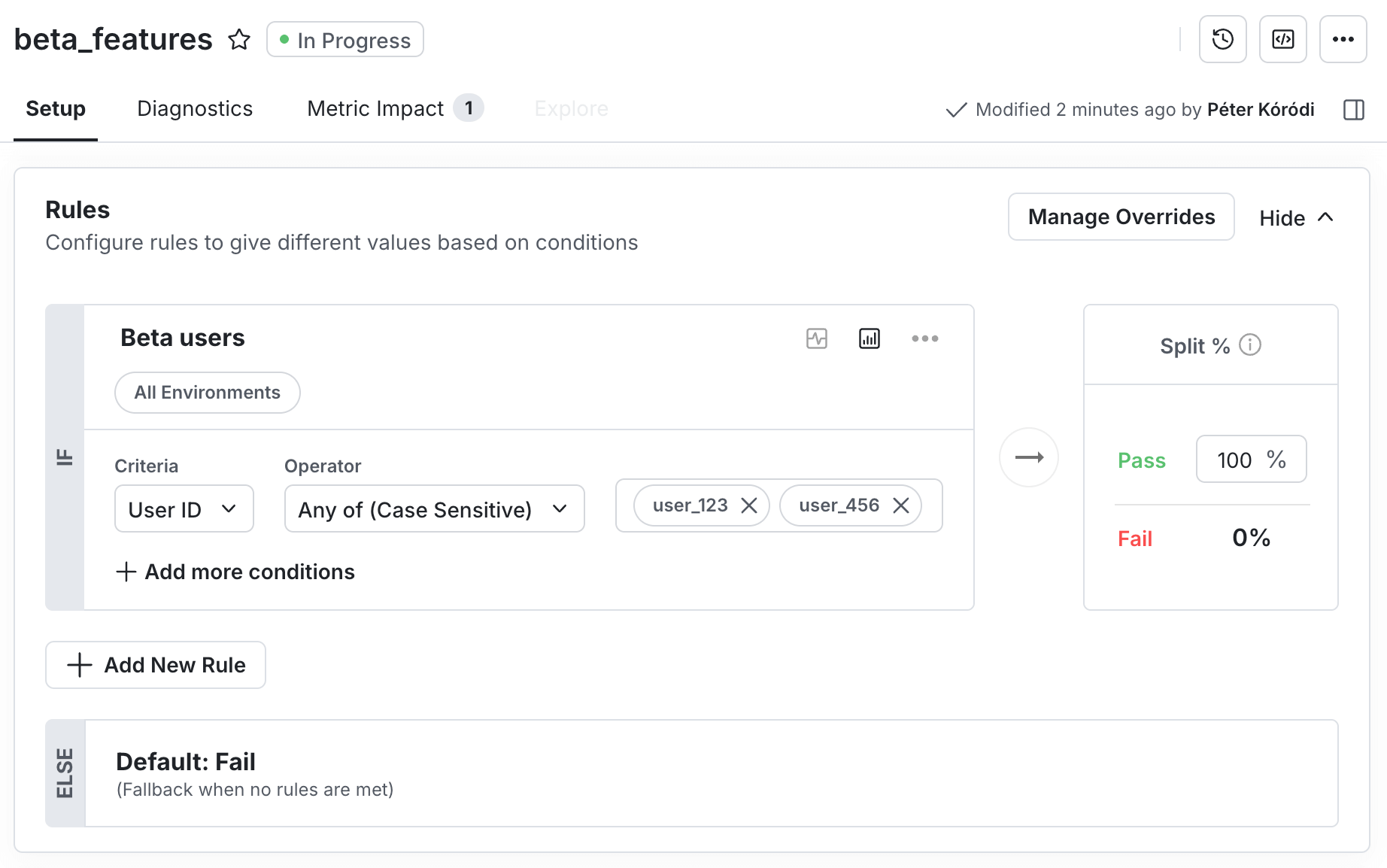
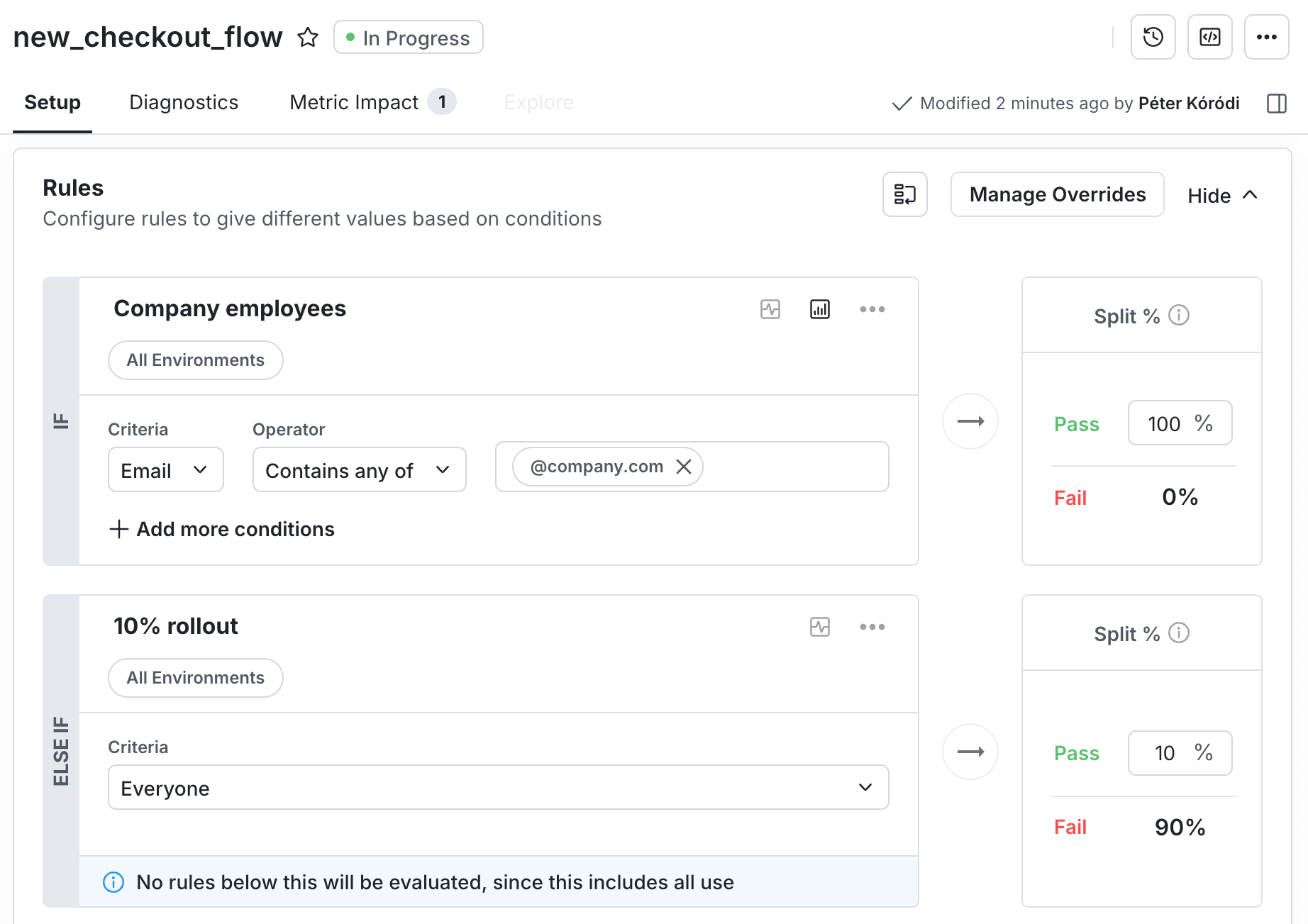
Start by getting a complete inventory of your flags. Use this prompt:
"List all feature gates in my Statsig project. For each gate, show me: name, description, status, default value and all targeting rules with their conditions."
Save this output. It becomes your migration checklist and reference for creating flags in ConfigCat.
Migrate the Feature Flags to ConfigCat
Let's ask the agent to migrate the first flag:
"migrate
beta_featuresStatsig feature gate into ConfigCat"
On the ConfigCat dashboard you can check the migrated beta_features flag:
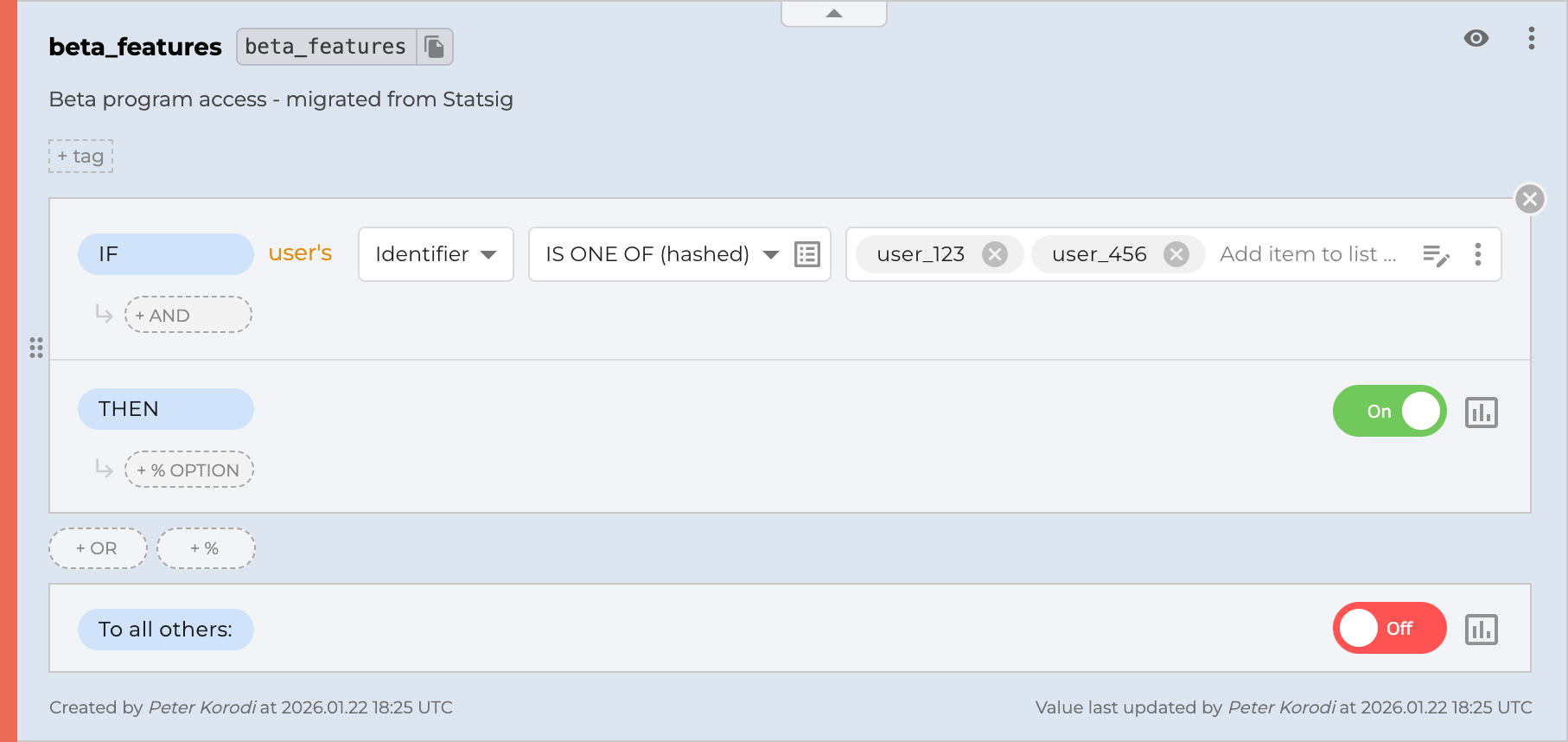
Let's migrate the other one:
"migrate
new_checkout_flowStatsig feature gate into ConfigCat"
On the ConfigCat dashboard you can check the second flag:
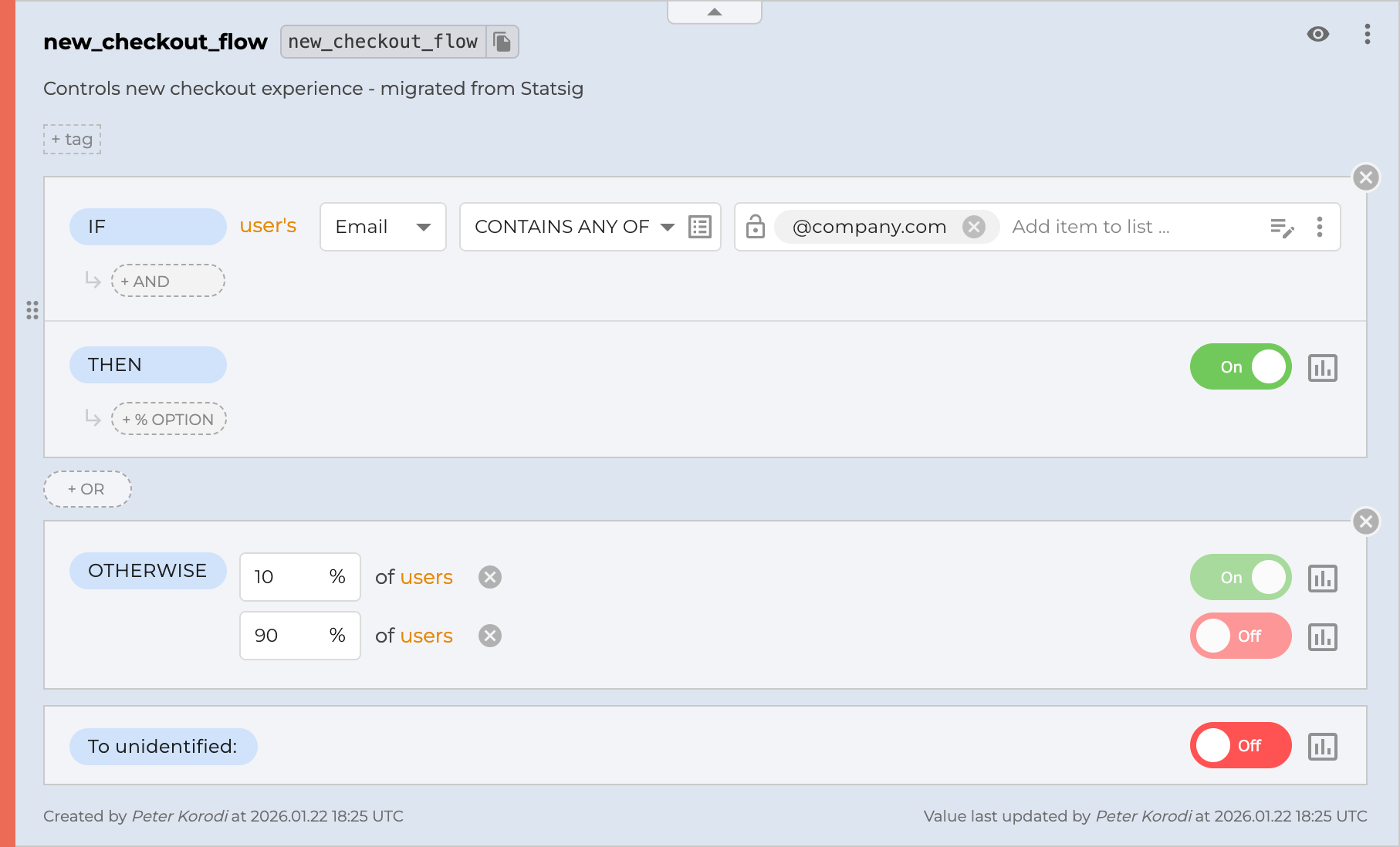
The migration is complete. On top of that, you should update all usages of these flags in your codebase to use the appropriate ConfigCat SDK rather than the previous Statsig SDK.
AI can make mistakes. Always validate and test the migrated feature flags.
Questions You Might Have During Migration
Is it possible to remove - migrated from Statsig text from a migrated feature flag's description?
Yes. Add this requirement to your migration prompt like this:
"Migrate
beta_featuresStatsig feature gate into ConfigCat. Keep the original description don't append the text:- migrated from Statsig"
Can I migrate Dynamic Configs or Parameter Stores?
A Statsig Dynamic Config will be migrated into ConfigCat as a String Setting storing a JSON string.
Unfortunately, the Statsig MCP server can’t access Parameter Stores, so they can’t be migrated using the method described in this blog post.
Can I migrate flags from other feature flag tools like LaunchDarkly?
For LaunchDarkly, ConfigCat has an official migration tool built into the ConfigCat dashboard.
For other tools (for example DevCycle) that provide an MCP server, you can run a similar migration process as described above.
Can I use AI to refactor the usage of the migrated feature flags in my codebase?
Yes. A ConfigCat MCP server can access the ConfigCat SDK documentation and assist with implementing ConfigCat feature flags.
It’s recommended to configure the ConfigCat MCP server in an AI coding tool such as Cursor, Claude Code, or VS Code with Copilot. Just ask the AI tool to update the codebase like this:
"Migrate my codebase from Statsig to ConfigCat for the "beta_features" feature flag."
AI-generated code may contain mistakes, always validate and test it.
Can I migrate Statsig experiments?
Statsig experiments can be mapped to ConfigCat’s percentage-based targeting rules.
You can migrate your experiment groups using the following prompt:
“Migrate the
my_experimentStatsig experiment into ConfigCat as a feature flag with percentage-based targeting for each variant.”
Because ConfigCat follows a zero data collection strategy, it does not collect user-tracking data. For statistical analysis, you’ll need to integrate an analytics tool such as Google Analytics or Mixpanel.
Conclusion
Migrating feature flags from Statsig to ConfigCat with MCP servers is straightforward:
- Set up both MCP servers in your IDE
- Export your complete flag list from Statsig
- Ask the AI agent to migrate the feature flags one by one
- Verify and run both systems in parallel before cutover
What previously took hours of manual work now becomes a series of copy-paste prompts. The AI handles the API complexity while you focus on ensuring your flags are correctly configured.
Resources
- ConfigCat MCP server documentation
- ConfigCat MCP server GitHub repository
- ConfigCat MCP server available tools
- Management API Reference
- Official LaunchDarkly to ConfigCat migration tool
For more on feature flags, check out ConfigCat on Facebook, X, LinkedIn and GitHub.
If you’re a Statsig user and you’re interested in how migrating to ConfigCat works in practice, sign up and try it yourself or book a demo to see it in action.