How to Migrate from Prefab to ConfigCat Using MCP Server

Manually recreating dozens of feature flags across platforms is tedious and error-prone. This guide shows you how to automate the entire migration from Prefab to ConfigCat in minutes using CLI export and natural language commands via an AI agent.
Rather than rebuilding every flag by hand, you'll export your entire Prefab configuration into a data file and use ConfigCat's AI-powered Model Context Protocol (MCP) server to transfer your configuration with minimal effort.
Prefab was acquired by Reforge and is being rebranded as Reforge Launch. If you're evaluating Prefab alternatives, ConfigCat offers a comparable feature set. With this simple migration process, you can see exactly how your Prefab feature flags behave in ConfigCat.
TL;DR: How to Migrate from Prefab?
-
Use the
@prefab-cloud/prefabCLI tool to download your Prefab feature flags as a.jsondata file. -
Set up an AI agent (like Claude Desktop or Cursor) to connect to ConfigCat using the ConfigCat MCP server.
-
Ask the AI agent to interpret the exported file and migrate your feature flags from Prefab to ConfigCat.
Read on for the full step-by-step walkthrough.
Prefab vs. ConfigCat: How the Concepts Map
Before diving into the migration, it's helpful to understand how the two platforms map to each other conceptually.
- Prefab Feature Flags are equivalent to Boolean Feature Flags in ConfigCat (simple on/off toggles).
- Prefab Config values (int, double, string, string list, JSON) map to Int, Double or String Settings in ConfigCat. JSON configs can be represented as a String Setting that stores the serialized JSON. A string list can also be mapped to a String Setting that stores comma-separated strings.
- Both tools use Segments for reusable user groups, Targeting Rules for feature flag targeting and support multiple Environments like Production, Staging, Dev, etc.
You can learn more about how ConfigCat structures Settings, Products and Environments in the ConfigCat Main Concepts documentation.
Prerequisites
- Prefab account with existing feature flags
- ConfigCat account - sign up for free, if you don’t have one
- Node.js version 16 or higher installed
- Claude Desktop installed
Step 1: Export Your Prefab Feature Flags
The @prefab-cloud/prefab CLI can download your entire Prefab configuration into a local config.json file. This file contains all your feature flags, config values, targeting rules, and segment definitions.
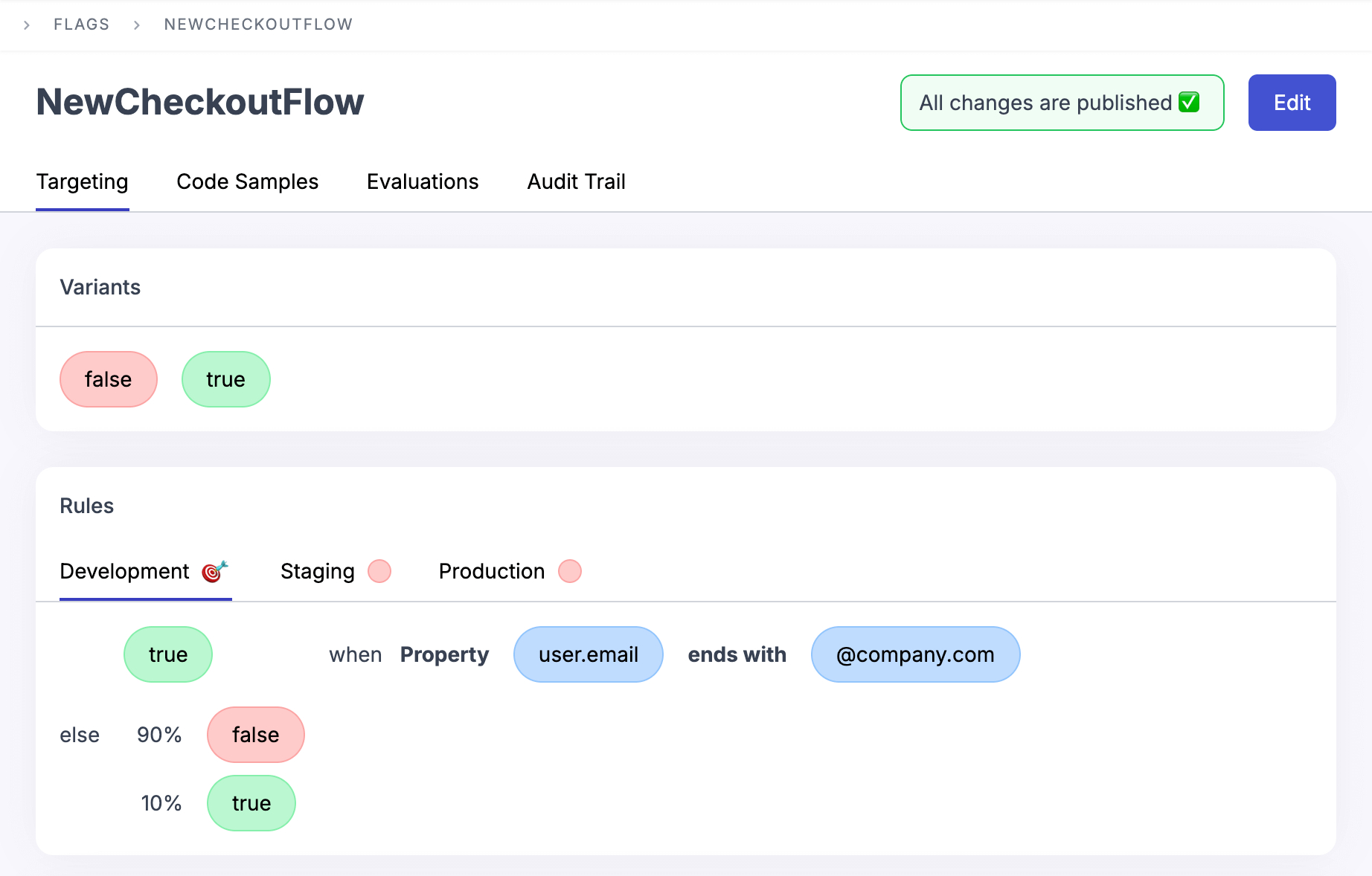
For this guide, assume you have these two feature flags in Prefab:
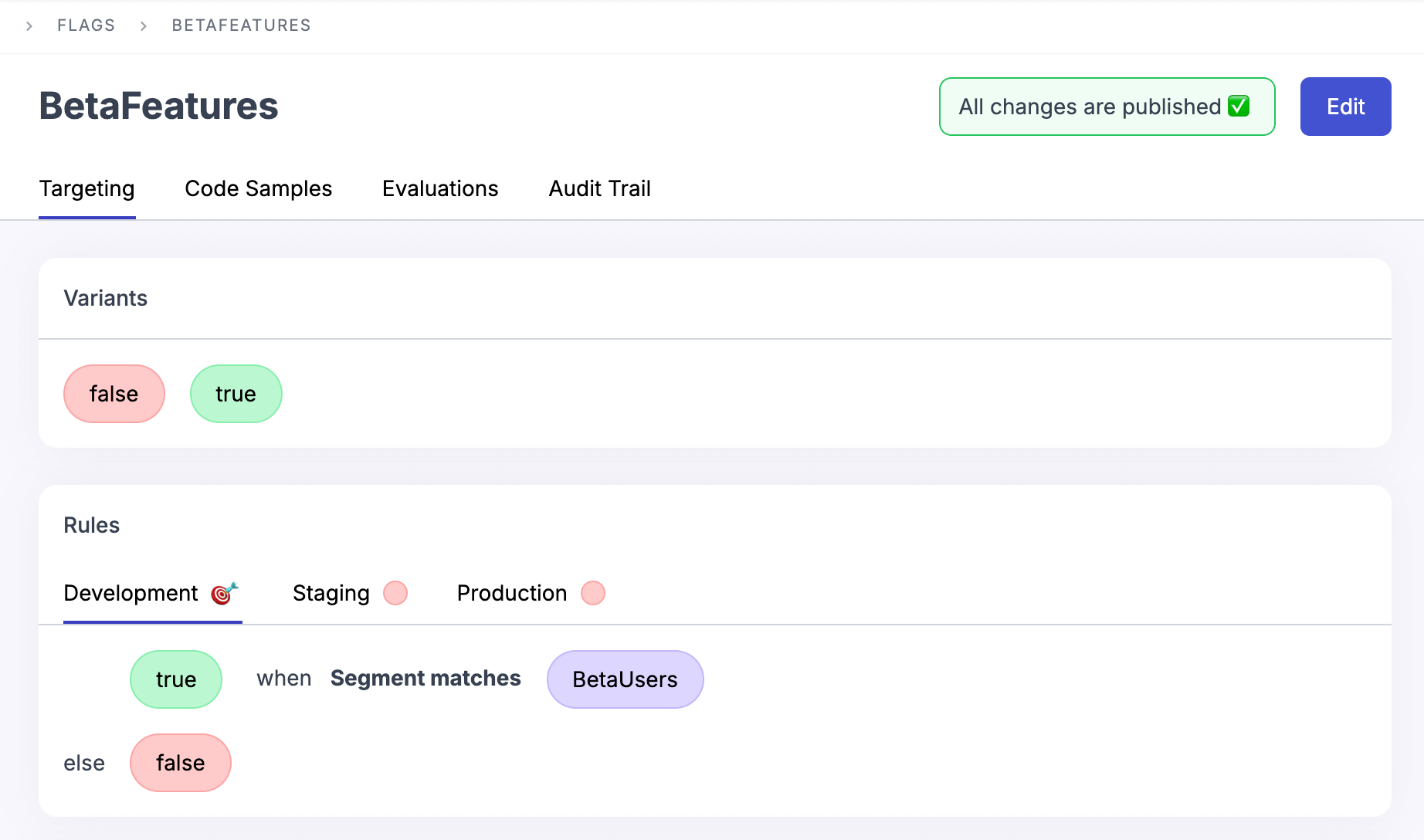
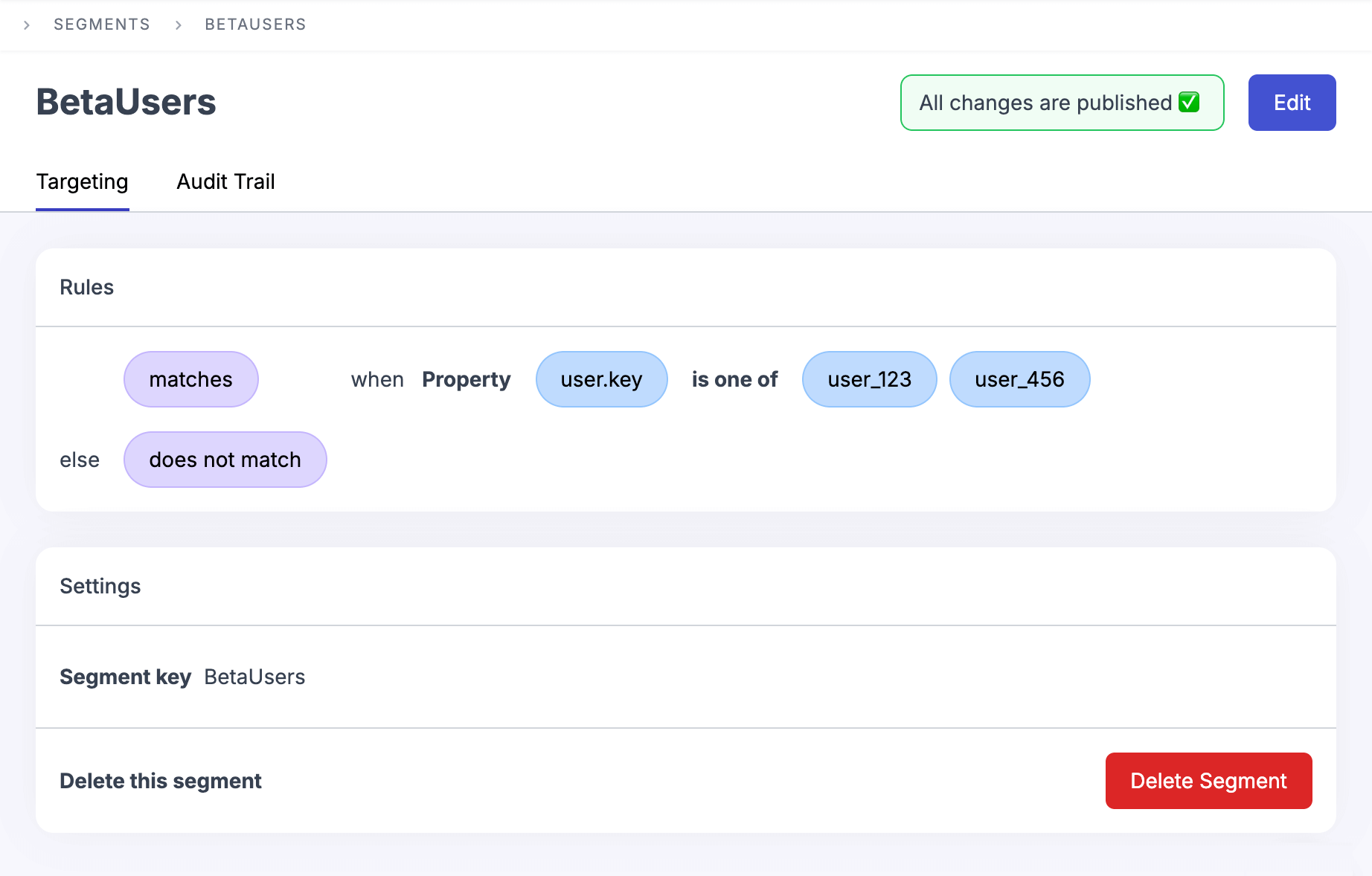
This is the BetaUsers segment used by BetaFeatures feature flag:
Install the Prefab CLI
npm install -g @prefab-cloud/prefab
Create Prefab API Key
The Prefab CLI tool needs an API key to access your feature flags.
Log in to your Prefab account and create an API key:
- Click
Environments. - Click
Add Backend API Keyunder the environment you want to migrate. - Copy the
Plain API Key. The Prefab CLI will use this API key. - Click
OK.
Download the configuration data file
Let's export the configuration file of the Development environment:
prefab download --api-key <YOUR-PREFAB-BACKEND-API-KEY> --environment Development
This produces a config.json file in your working directory. It contains a complete snapshot of your Prefab flags. Keep this file handy, you'll upload it to the AI agent.
Step 2: Configure ConfigCat MCP Server
What is an MCP Server?
Model Context Protocol (MCP) is an open standard that allows AI assistants to connect with external tools and services. Think of it as giving your AI agent hands to actually perform actions, not just talk about them.
An MCP server acts as a bridge between your AI client (like Claude Desktop) and an external service's API. When you ask your AI assistant to "list all feature flags in my project," the MCP server translates that natural language request into the appropriate API calls and lists your flags.
Creating ConfigCat Public API Credentials
The ConfigCat MCP server needs a ConfigCat Public API credential to access ConfigCat's public management API and perform actions like managing feature flags, targeting rules, or segments, etc.
You can create this credential on the Public API credentials management page.
Installing MCP Server
- Install Claude Desktop, if you haven’t already.
- Open Settings → Developer
- Click Edit Config
- In
claude_desktop_config.jsonadd:
{
  "mcpServers": {
    "ConfigCat": {
      "command": "npx",
      "args": ["-y", "@configcat/mcp-server"],
      "env": {
        "CONFIGCAT_API_USER": "YOUR_CONFIGCAT_API_USER",
        "CONFIGCAT_API_PASS": "YOUR_CONFIGCAT_API_PASSWORD"
      }
    }
  }
}
- Save & restart Claude Desktop.
Replace YOUR_CONFIGCAT_API_USER and YOUR_CONFIGCAT_API_PASSWORD environment variables with your ConfigCat Public API credentials.
Verify the MCP Server Connection
Let's try asking the agent to list all ConfigCat feature flags using the following prompt:
"List all feature flags in my ConfigCat account"
You should see a list of your ConfigCat feature flags with their names, IDs, and statuses. If this is a new ConfigCat account, you might see the default myNewAwesomeFeature flag created during registration.
You’ll need to click Run tool or Allow once each time the AI agent tries to interact with the API. MCP servers require user approval before calling external APIs as a security measure. You can review the actual API request payload here before you accept it.
Step 3: Migrate the Feature Flags to ConfigCat
Upload the exported Prefab configuration data file, and let's ask the agent to migrate the first flag:
"migrate
NewCheckoutFlowPrefab feature flag into ConfigCat"
On the ConfigCat dashboard, you can check the migrated NewCheckoutFlow flag:
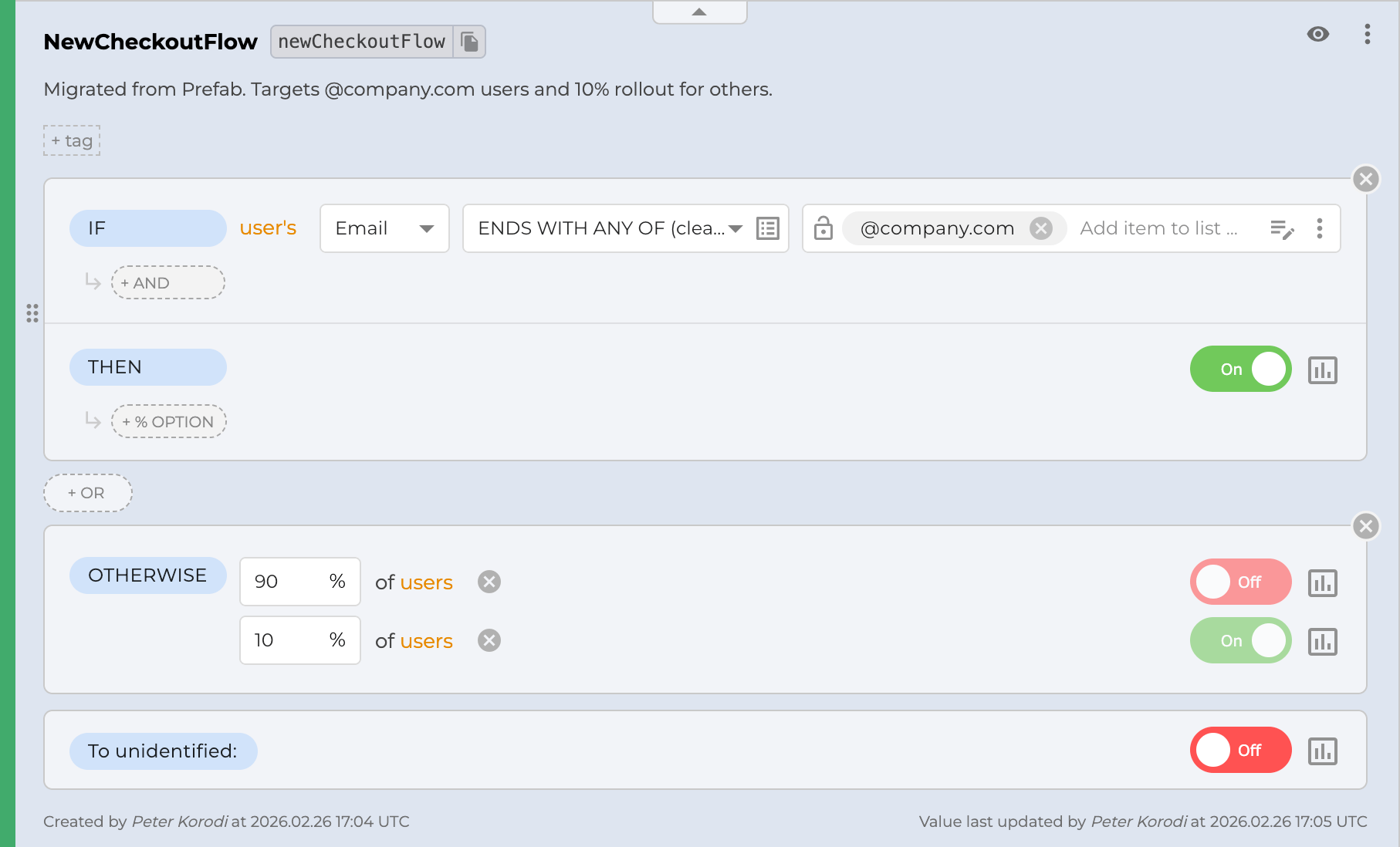
Let's migrate the other one:
"migrate
BetaFeaturesPrefab feature flag into ConfigCat"
On the ConfigCat dashboard, you can check the migrated BetaFeatures flag:
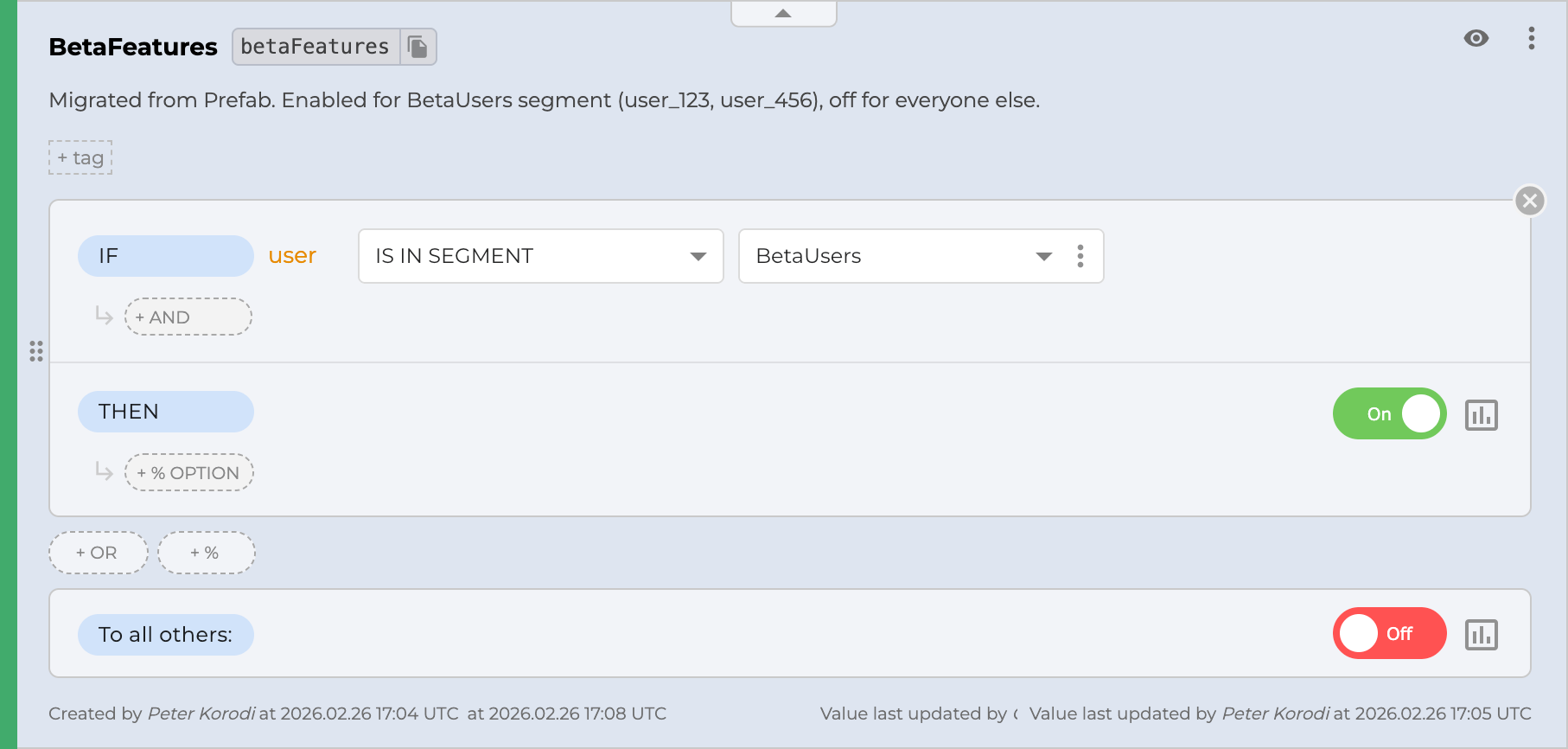
This is the migrated BetaUsers segment used by the BetaFeatures feature flag:
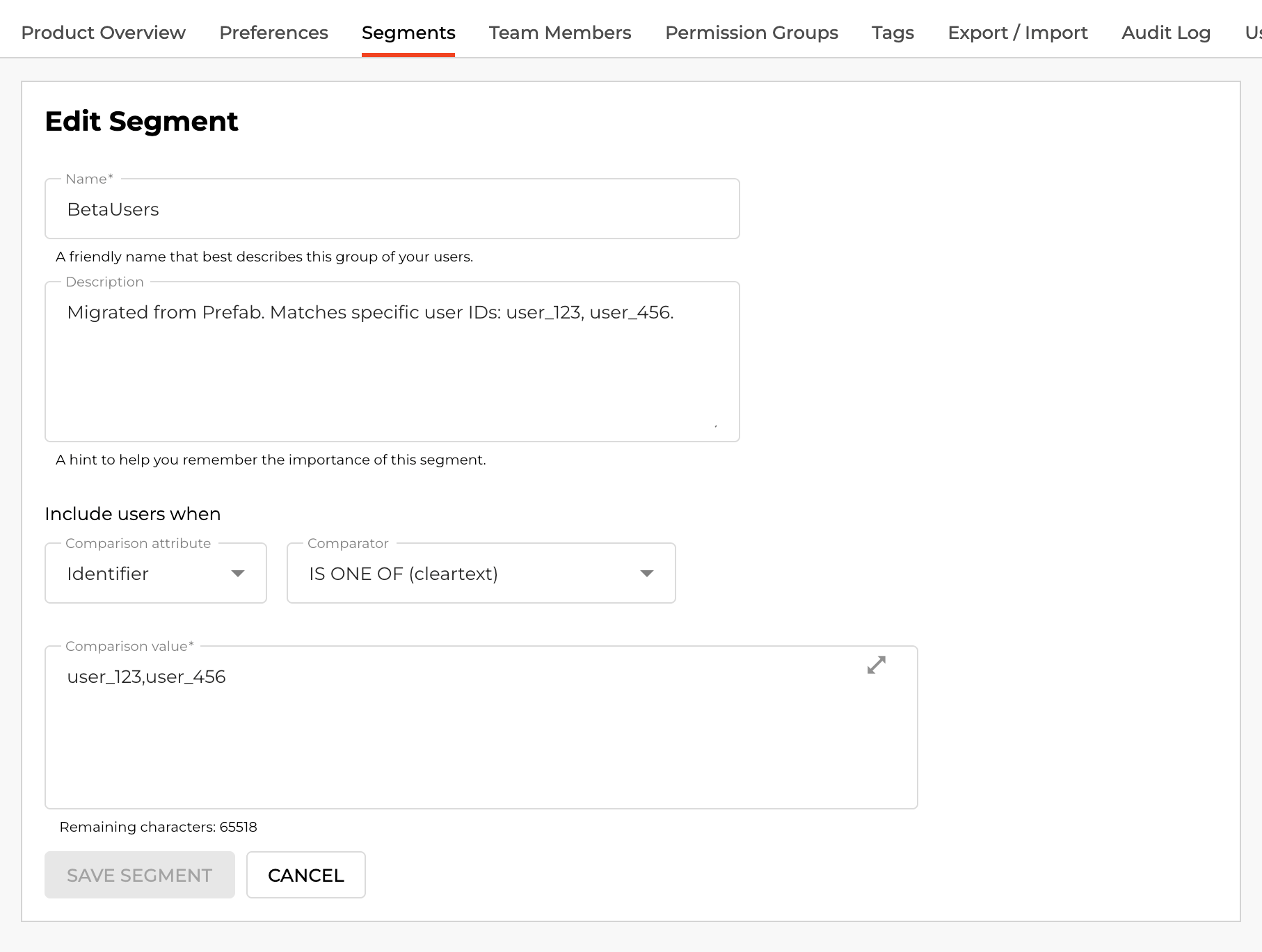
The migration is complete. On top of that, you should update all usages of these flags in your codebase to use the appropriate ConfigCat SDK rather than the previous Prefab SDK.
AI can make mistakes. Always validate and test the migrated feature flags.
Questions You Might Have During Migration
Is it possible to remove the migrated from Prefab text from a migrated feature flag's description?
Yes. Add this requirement to your migration prompt like this:
"Migrate
BetaFeaturesPrefab feature flag to ConfigCat. Keep the original description, don't append the text:migrated from Prefab."
Is ConfigCat a good Prefab alternative for teams affected by the Reforge acquisition?
Yes. Prefab was acquired by Reforge and is being rebranded as Reforge Launch. For teams that want to stay on a dedicated, independent feature flag platform rather than follow the rebrand, ConfigCat is a strong alternative. It covers the same core use cases like boolean flags, multi-value settings, segments, targeting rules, and multiple environments, while also offering broader SDK support, global CDN delivery, transparent usage-based pricing with no seat limits, and a zero data collection architecture with strong security by design.
Can I migrate flags from other feature flag tools like LaunchDarkly?
For LaunchDarkly, ConfigCat has an official migration tool built into the ConfigCat dashboard.
For other tools (such as Statsig or DevCycle) that provide an MCP server, you can run a migration process that uses two MCP servers. The AI agent communicates with both servers and transfers the flags from the source tool via its MCP server to ConfigCat via the ConfigCat MCP server. This method is explained in detail in the following blog post.
Can I use AI to refactor the usage of the migrated feature flags in my codebase?
Yes. A ConfigCat MCP server can access the ConfigCat SDK documentation and assist with implementing ConfigCat feature flags.
It’s recommended to configure the ConfigCat MCP server in an AI coding tool such as Cursor, Claude Code, or VS Code with Copilot. Just ask the AI tool to update the codebase like this:
"Migrate my codebase from Prefab to ConfigCat for the "BetaFeatures" feature flag."
AI-generated code may contain mistakes; always validate and test it.
Is it possible to use ConfigCat's hashed confidential text comparators instead of cleartext comparators?
Yes. Add this requirement to your prompt like this:
"Migrate
NewCheckoutFlowPrefab feature flag to ConfigCat. Use hashed ConfigCat confidential text comparators wherever possible instead of cleartext comparators."
Conclusion
Migrating feature flags from Prefab to ConfigCat with the Prefab CLI tool and the ConfigCat MCP server is straightforward:
- Download the data file with the Prefab CLI tool
- Set up ConfigCat MCP servers in your IDE
- Export your complete environment into a data file from Prefab with the CLI tool
- Load the exported data into the AI agent and ask to migrate the feature flags one by one
- Verify and run both systems in parallel before cutover
Resources
- ConfigCat MCP server documentation
- ConfigCat MCP server GitHub repository
- ConfigCat MCP server available tools
- Management API Reference
- Official LaunchDarkly to ConfigCat migration tool
- How to Migrate from Statsig to ConfigCat: Feature Flag Migration Using MCP Servers - Blog post
For more on feature flags, check out ConfigCat on Facebook, X, LinkedIn, and GitHub.
If you're looking for a Prefab alternative, ConfigCat is a great choice. It does everything Prefab Reforge Launch does. Sign up and try it yourself or book a demo to see it in action.